
13 Claude Hacks I Use to Run My Solo AI Business
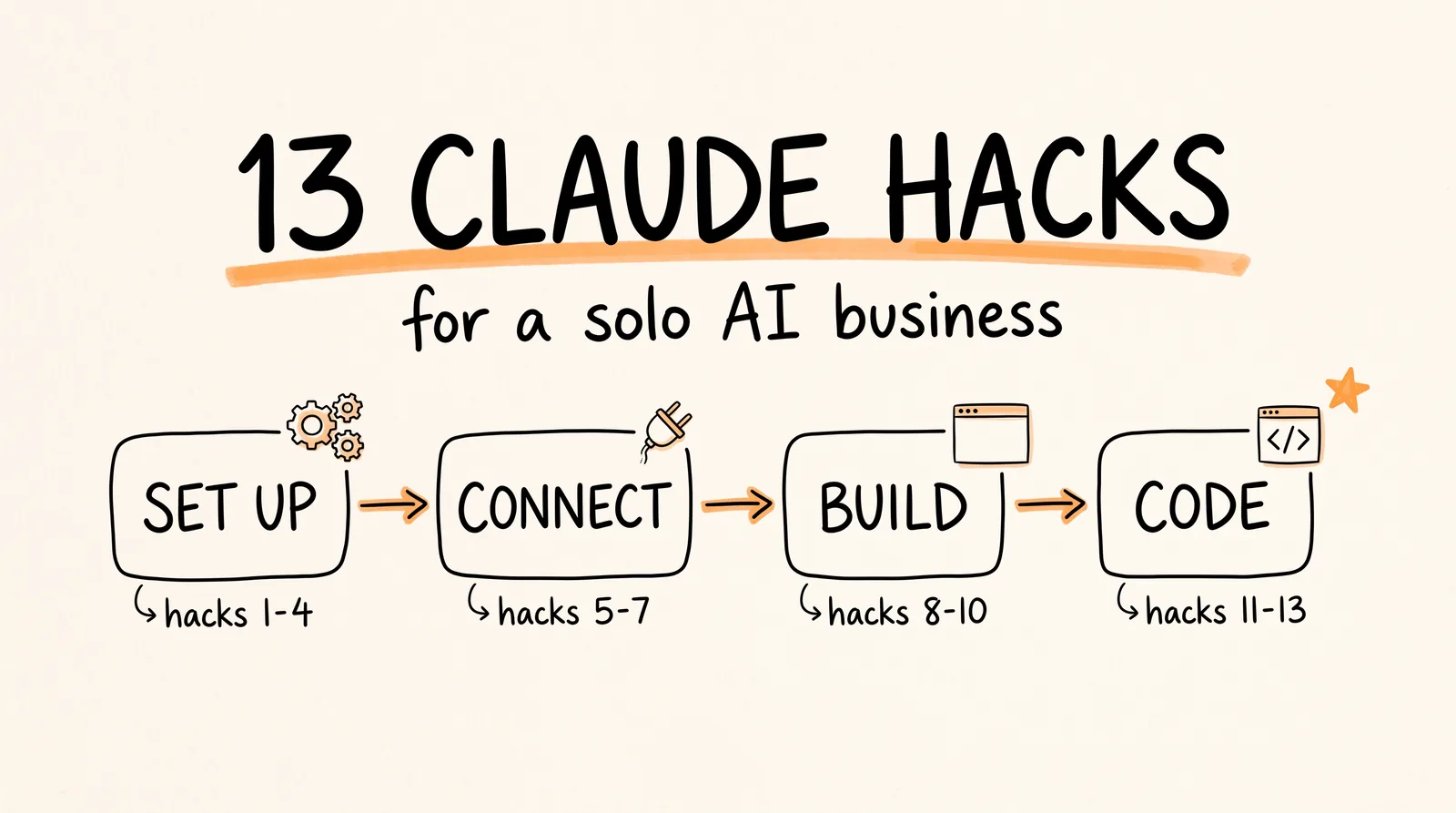
Most people use Claude like a search box: type a question, get a paragraph back. These are the 13 features I use every day to run my AI business on my own, in order from first setup to building real apps with Claude Code. The first five take about 30 minutes to set up, need zero coding, and they're how I stopped losing 20 hours a week to email and switching between apps.
Don't want to figure this out alone? I walk members through every step inside the community. Join the Skool → skool.com/raycfu
What You Need
A Claude account. The setup steps work on any plan. The features that do work on your computer for you (Cowork, Dispatch, Claude in Chrome, Claude Design, and Claude Code) need a paid plan, and Pro starts at $20 a month.
The Claude desktop app for Mac or Windows from claude.ai/download, plus the Claude mobile app on your phone.
Google Chrome for Step 9, and a Telegram or Discord account if you want to try Step 12. Each step stands on its own, so skip anything you don't need.
Step 1: Bring Your Memory Over From ChatGPT
Memory Import moves everything ChatGPT knows about you into Claude in under 2 minutes. If you spent a year teaching ChatGPT about your business, your writing style, and how you like your answers, you don't have to start from zero. It works on every plan.
Open Claude, go to Settings, click Memory, and hit Start Import. Claude gives you a prompt. Paste that prompt into ChatGPT, and ChatGPT writes out everything it remembers about you. Copy that whole answer, paste it back into Claude, and click Add to Memory. Your context comes with you, and Claude can take up to a day to fully work it in.
Step 2: Pick the Right Model for Each Job
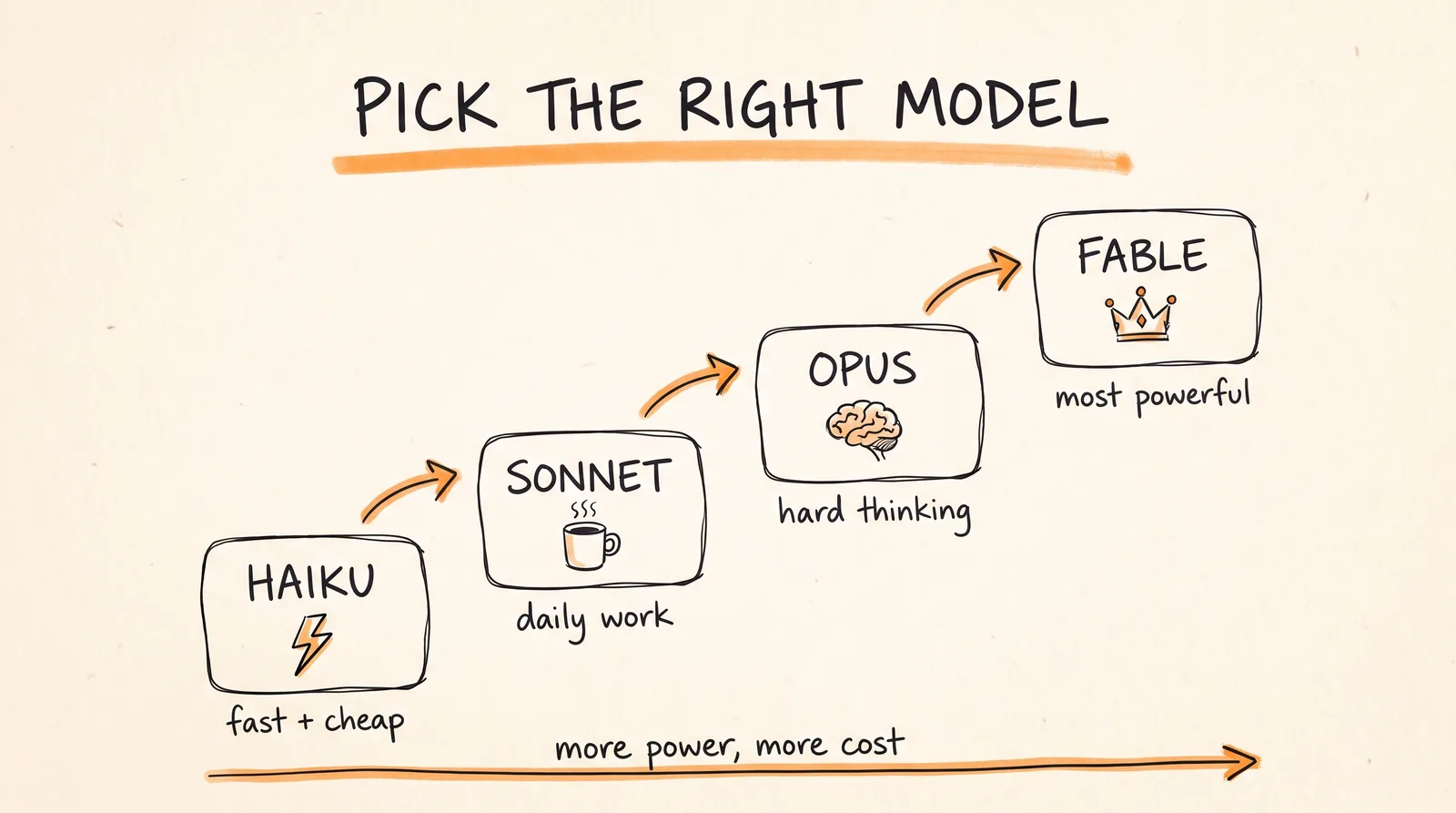
Claude has four main models, and using the wrong one wastes your time or your money. A tiny task on the biggest model is slow and costs more than it should. A hard task on the smallest model gets you a shallow answer.
Haiku is the fastest and cheapest. It's built for high volume work, like sorting through data or a task that runs over and over in the background for fractions of a cent each time. I use it to summarize my meeting notes for the week, and the answer comes back in seconds.
Sonnet is the everyday workhorse for drafting content, quick scripts, and small code edits.
Opus is for heavy lifting: debugging a big codebase, problems with many steps, or pulling complex metrics out of messy data. It thinks harder, so it's slower, and that's the point.
Fable is the newest and most powerful model, for tasks that go beyond what even Opus can handle.
Pick the model from the menu next to the message box before you send. I choose it by hand for every task so I stay in control of what comes back.
Step 3: Give Every Project Its Own Folder and Claude.md
A Project is a dedicated folder for one part of your work, like your coaching offer, your YouTube channel, or one client. Everything Claude needs for that work lives there, so the answers are about your business instead of generic advice. On a Team plan you can invite teammates into the same project.
Click Projects in the sidebar, then Create Project, and drop in the docs Claude should know: your offer, your price list, past content, or how you do things. Then add a Claude.md file. It's a short text file that tells Claude your rules and preferences for this project. Upload it with your other files, or paste the same text into the project's Instructions box. It works like your own custom GPT. Here's the template I start from:
# About me
I run [YOUR BUSINESS]. I sell [OFFER] to [WHO YOUR CUSTOMERS ARE] for [PRICE].
# How I want you to work
- Lead with the answer, then explain your reasoning in 2 or 3 sentences.
- Write the way I talk: plain English, short sentences, no corporate words.
- Use the real numbers in this project's files. If a number is missing, say so instead of guessing.
- If my request is unclear, ask me one question before you start.
# This project
Goal: [WHAT THIS PROJECT IS FOR]
Key files: [EACH FILE YOU UPLOADED AND WHAT IT IS]
Never: [THINGS CLAUDE SHOULD NOT DO, LIKE PROMISE DISCOUNTS OR CHANGE PRICES]
Keep it under a page. Every time Claude does something you don't like, add one line to fix it. That one line saves you from correcting the same mistake every day.
Step 4: Stop Typing and Use Voice Mode
Most people speak around 150 words a minute and type around 40, so talking gets your ideas out almost 4 times faster. I hate typing long paragraphs, so whenever I'm walking or traveling, this is how I brainstorm.
In the Claude app, tap the waveform icon to start Voice Mode and just talk. Dump every messy, half finished thought, and Claude figures out what you mean and turns it into a structured plan. For a quick message, tap the microphone icon instead and say what you'd normally type. If the transcription isn't good enough for you, a dictation tool like Wispr Flow works in any app. When you're done talking, send this:
That was a messy brain dump. Turn it into a clear plan: my goal in one sentence, the next 3 actions in order, and any open questions I still need to answer.
Step 5: Connect Your Apps With Connectors
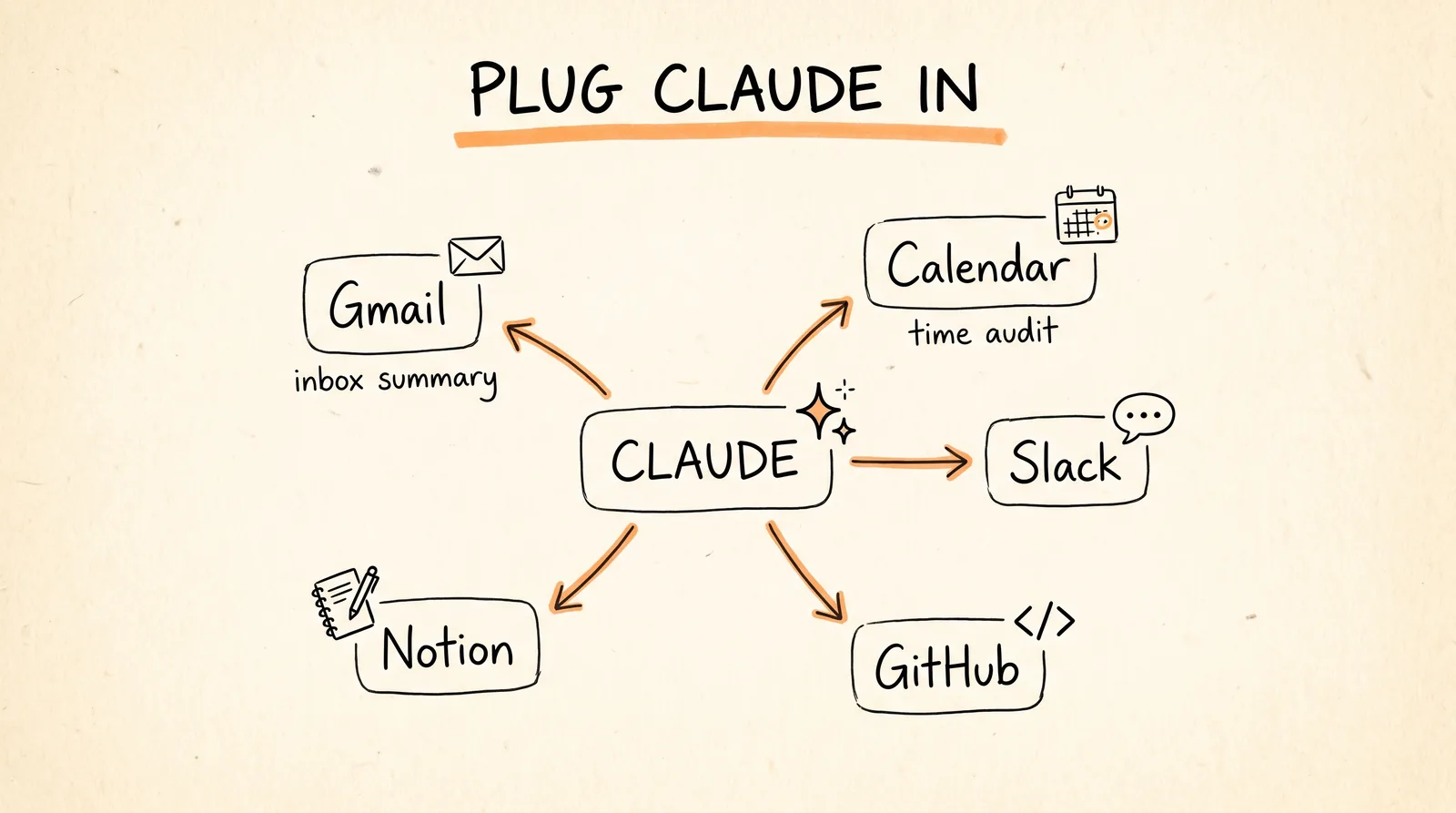
With the basics in place, plug Claude into the apps you already use. Connectors are built on MCP, short for Model Context Protocol, which is just a standard way for AI to safely plug into other apps. Once Gmail is connected, Claude reads your inbox in seconds so you don't spend an hour on it.
In the sidebar, open Customize, then Connectors. Click Connect next to Gmail and sign in with Google. Then ask:
Summarize my inbox for the last 24 hours and list any urgent tasks.
Claude scans your recent emails and gives you a clear summary, your most important tasks, and draft replies for anything urgent.
Next, connect Google Calendar and use it as a business audit. Give Claude your goals for the quarter first, then ask:
Analyze my past two weeks of calendar meetings and tell me if my time allocation matches my core revenue goals.
It shows you exactly where your time goes that doesn't make you money. Slack, GitHub, Notion, and a lot more connect from the same Connectors menu.
Step 6: Put Your Morning Admin on a Schedule
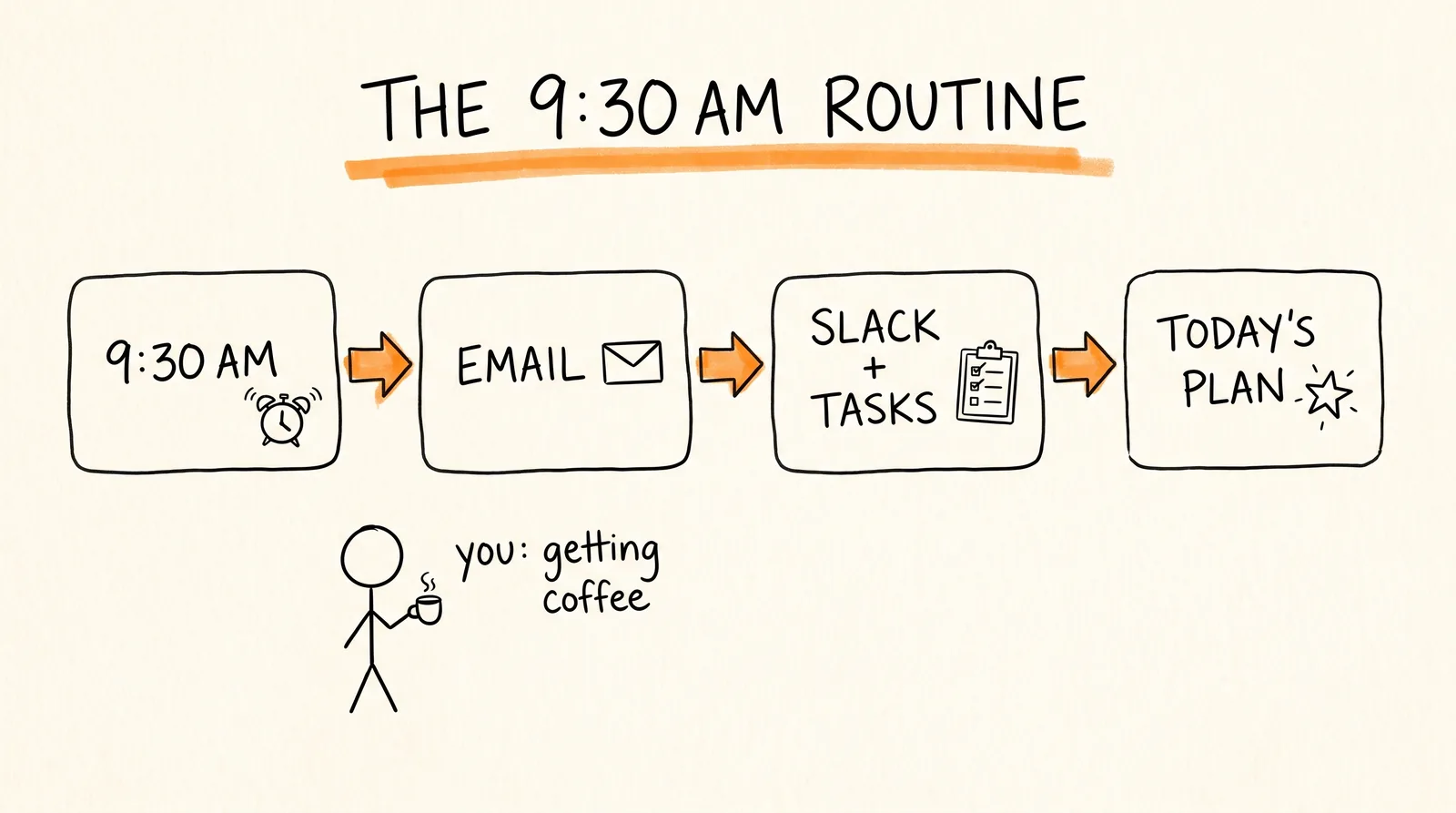
Scheduled tasks in Cowork are one of the features I use every single day. If you open the same apps and click through the same steps every morning, Claude can do it before you sit down.
Open the Claude desktop app and switch to Cowork at the top. Type /schedule in the message box, then describe the task and when it should run. Mine runs at 9:30 AM every morning and checks my email, Slack, and task manager. While I'm getting coffee, Claude reads my inbox, checks my priority tasks, and lays out my day, so I have an action plan the moment I sit down. Here's a version you can copy:
Every weekday at 9:30 AM, check my Gmail, Slack, and task manager. List anything urgent first, then my top 3 priorities for today, then a suggested schedule that uses the open time on my calendar. Keep it short enough to read in 2 minutes.
Other good daily tasks are pulling yesterday's numbers, reviewing your calendar, or summarizing team updates. Leave your computer on with the desktop app open at that time so the task can run.
Step 7: Send Tasks From Your Phone With Dispatch
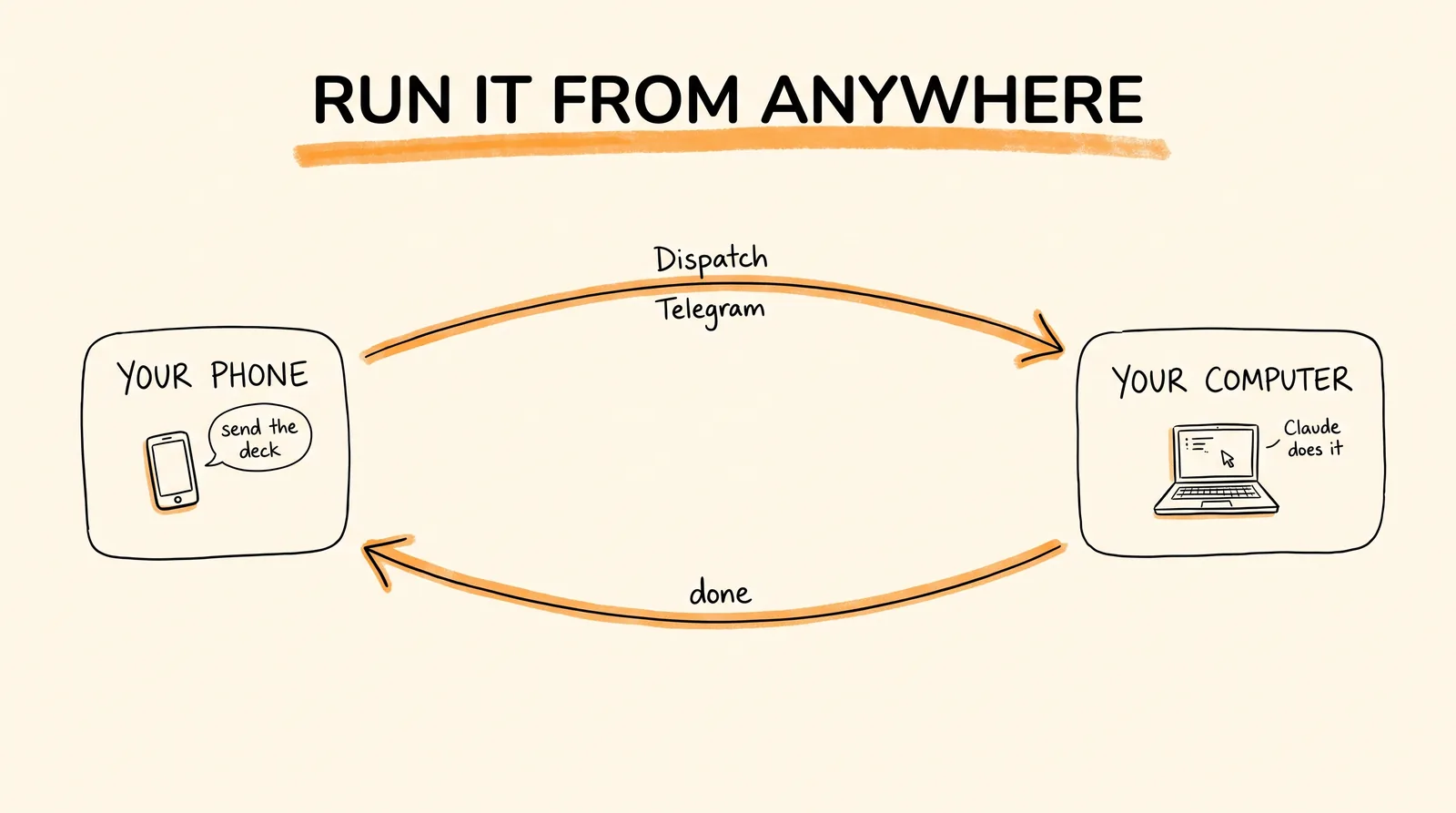
Dispatch pairs the Claude app on your phone with Claude on your computer. If you're out running errands and remember something you forgot to send your team, you don't have to go home.
In Cowork, click Dispatch and scan the QR code with your phone. That pairs your mobile app with Claude on your desktop. Then message it from anywhere:
Grab the latest project deck from my computer, check my calendar for open time blocks, draft a summary email, and send it to the team.
Claude does the work on your computer and reports back to your phone. Dispatch needs a Pro or Max plan, and your computer has to stay on with the desktop app open.
Step 8: Build Mini Apps Right in the Chat With Artifacts
When you're building a product or making content, a wall of text doesn't help much. You can't click a button or feel how a tool works from a paragraph. Artifacts fix that: ask Claude for something interactive and it builds a small working app in a panel next to your chat. Try this:
Build me a sales tracking app with editable columns so I can customize it.
You can click the buttons, edit columns, change the data, and watch it update in real time. Then keep refining it in plain English, like "add a total at the bottom" or "color overdue deals red." Loan calculators, habit trackers, and pricing tools all work the same way.
Step 9: Let Claude Use Your Browser With Claude in Chrome
Claude in Chrome is a browser extension that lets Claude see the page you're on, read it, and click around for you. Think about every time you've stared at a giant spreadsheet or copied rows by hand.
Install it from the Chrome Web Store (search for Claude) and sign in. It needs a Pro, Max, Team, or Enterprise plan. Open the page you're working on, click the extension, and ask. On a spreadsheet of leads, for example:
What leads should I focus on to get more conversions?
Claude reads the page, pulls out the data, clicks through the site where it needs to, and gives you an answer in seconds. Almost anything you do in a browser can be handed to it. Just check its work before it submits anything that matters, like a form or a payment.
Step 10: Design Like a Pro With Claude Design
Claude Design turns a description into landing pages, pitch decks, and wireframes in a few minutes. You don't need design skills to get something that looks professional. It's in beta on paid plans.
Go to claude.ai/design, or click the Design button in the desktop app. Describe what you want, and if you have a look in mind, upload your brand style guide or a few reference screenshots so Claude matches your colors, fonts, and vibe. For example:
Design a landing page for my AI automation consulting offer. Clean, lots of white space, and one clear button to book a call. Match the colors and fonts in the brand guide I uploaded.
I use it all the time to try out how an app could look before turning the idea into real code.
Step 11: Build Real Software With Claude Code
Claude Code is my favorite. It's an AI software developer that works with the actual files on your computer. You don't need to be technical: describe what you want in plain English and it writes the code, runs it, and fixes its own errors. Ask it to explain what it did and it teaches you to build better software as you go.
There are two ways to use it. The easiest is the Code tab in the Claude desktop app. The other is the terminal, the text window where you type commands. On a Mac, open Terminal and paste:
curl -fsSL https://claude.ai/install.sh | bash
On Windows, open PowerShell and paste:
irm https://claude.ai/install.ps1 | iex
Then type claude and press Enter to start it. If you've never used a terminal, ask Claude to walk you through it. Once it's running, describe what you want:
Build me a sales dashboard app
Claude Code reads your files, writes and edits the code, and tests the build. Anthropic's full setup guide is at code.claude.com/docs/en/setup.
Step 12: Fix Code From Your Phone With Claude Channels
Channels connects a running Claude Code session to Telegram, Discord, or iMessage, so you can text it from anywhere as long as your computer is on. If an error pops up while I'm out getting food, I text my Telegram bot, Claude Code runs the fix in my terminal, and it texts me back when it's done. It's a research preview, so expect it to change.
Setup takes about 10 minutes and you only do it once. First, install Bun, a free tool Channels needs to run:
curl -fsSL https://bun.sh/install | bash
Second, create your bot. In Telegram, message @BotFather, send /newbot, pick a name, and copy the token it gives you. That token works like an API key, which is just a secure password that lets your bot talk to Claude Code on your computer. Keep it private.
Third, connect the bot. Inside Claude Code, run these one at a time, with your token in place of the brackets:
/plugin install telegram@claude-plugins-official
/telegram:configure <YOUR_BOT_TOKEN>
Then quit and restart Claude Code with Channels turned on:
claude --channels plugin:telegram@claude-plugins-official
Last, set permissions so only you can use it. Send your bot a message on Telegram and it replies with a pairing code. Back in Claude Code, run this with that code:
/telegram:access pair <CODE>
Discord works the same way with discord in place of telegram, and the bot token comes from the Discord Developer Portal. Anthropic's guide, including iMessage on a Mac, is at code.claude.com/docs/en/channels.
Step 13: Teach Claude Your Repeatable Tasks With Skills
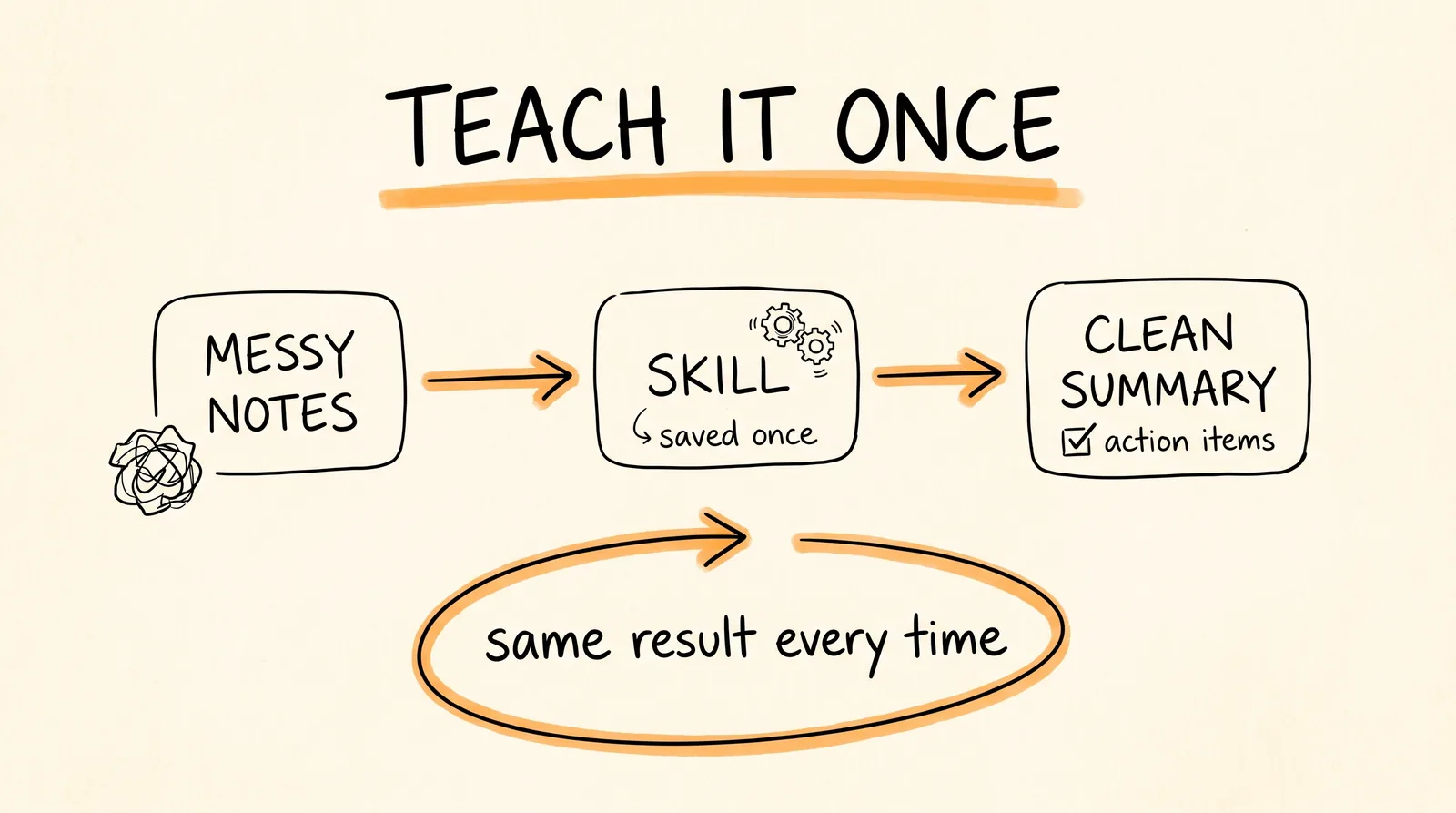
A skill is a saved set of instructions Claude follows the same way every time. It's how you stop explaining the same task over and over.
In the sidebar, open Customize, then Skills. You can create your own, or install skills other people share on GitHub, like ones that make AI writing sound human or audit financial documents. The easiest way to make your own is to do the task once in a chat, then ask Claude to turn it into a skill. Paste in your raw meeting notes and send:
Turn these meeting notes into a clean, professional summary with three parts: key points as bullets, action items with an owner and a due date, and clear next steps.
When the summary looks right, send:
Turn what you just did into a skill called Meeting Notes Summarizer, so you do it exactly this way every time I paste in notes.
From then on, paste in messy notes and you get the same clean summary every time.
Where to Start
Don't try to set up all 13 today. Start with one or two. If you're new, set up a Project with a Claude.md (Step 3) and connect Gmail (Step 5), then add one hack a week. Within a month, Claude is handling hours of admin before you sit down at your desk.
When Something Doesn't Work
A feature is missing from your sidebar. Most of the features that run on your computer need a paid plan, and new ones roll out over time. Update the desktop app and check your plan in Settings.
Your scheduled task or Dispatch message never ran. Your computer was asleep or the desktop app was closed. Both run on your computer, so it needs to be on.
Claude keeps giving generic answers in a project. Your Claude.md is too vague. Add your real numbers, examples of answers you liked, and the mistakes it keeps making.
Your Telegram bot doesn't answer. Claude Code has to be running with the --channels flag, and your computer has to be awake.
Answers are slow or eating through your usage. You're on a bigger model than the task needs. Drop down to Sonnet or Haiku.
Rules to Remember
Pick the model for the task, not out of habit. Give every project a Claude.md and add a line every time Claude gets something wrong. Connect the apps you live in so Claude can read them for you. Put anything you do every morning on a schedule. Check what Claude does in your browser before it submits anything. Start with one or two hacks, not all 13.
Set up one of these this week, and Claude starts giving you back the hours you used to lose to busywork.
Don't want to figure this out alone? I walk members through every step inside the community. Join the Skool → skool.com/raycfu