
How to Automate Your Instagram DMs With Muse
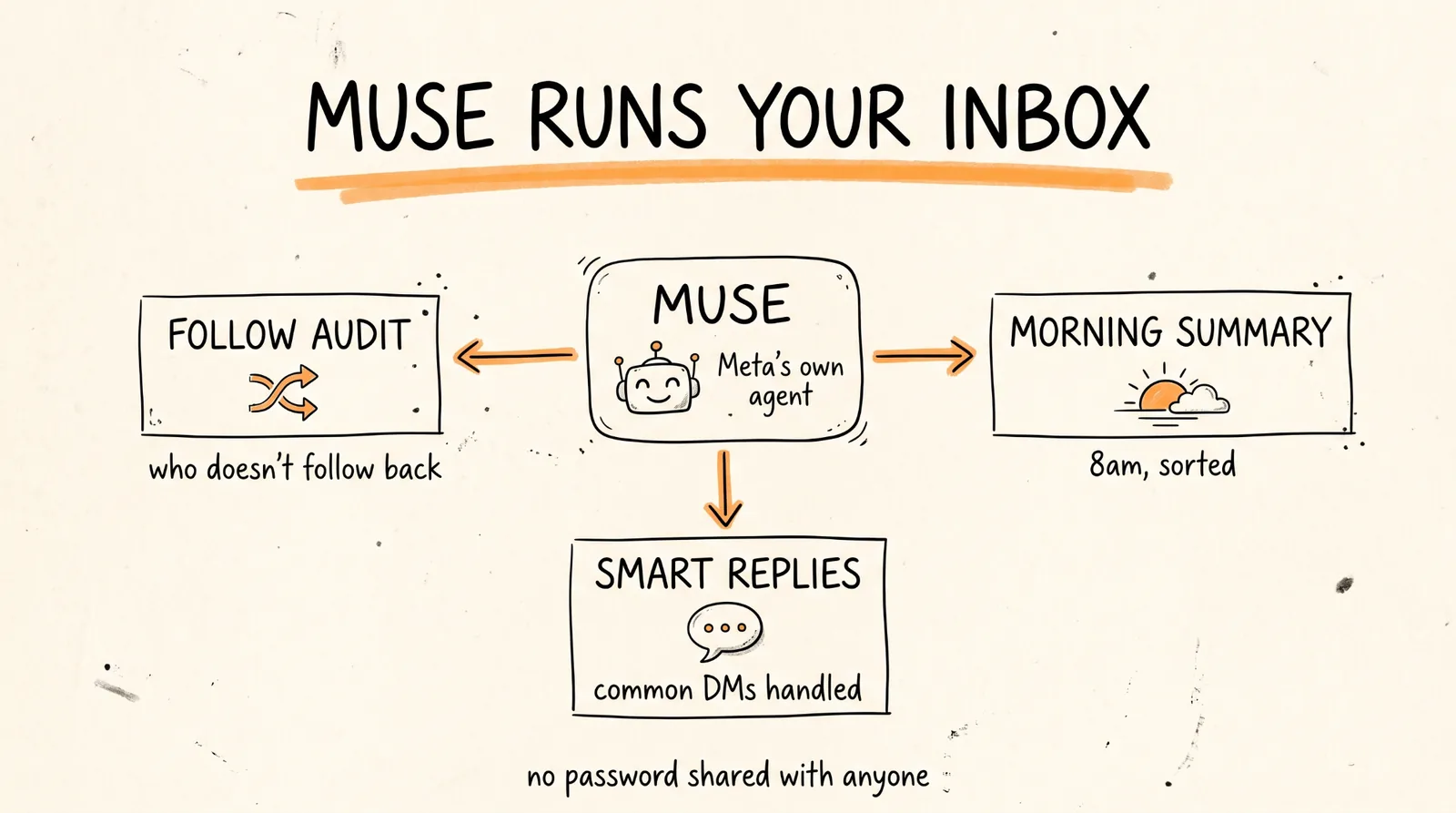
This guide shows you how to set up Muse, Meta's new AI agent, so it audits who does not follow you back, sends you a clean summary of your Instagram DMs every morning, and drafts replies to your most common messages so no lead slips through. You get the setup, four copy-paste prompts, the permission settings that keep you in control, and an honest breakdown of what Muse can and cannot do yet.
Don't want to figure this out alone? I walk members through every step inside the community. Join the Skool → skool.com/raycfu
What Muse Is
Muse is Meta's personal AI agent. It launched September 8, 2026 and hit number one on the US App Store within days. It is not the Meta AI chatbot inside Instagram. Muse is a separate app with its own secure computer in the cloud, its own browser, and connectors to your apps, and it keeps working in the background after you close it.
The part that matters for creators and businesses: Muse has a native Instagram connector, including your DMs. Because Muse is made by Meta, it connects to your Instagram account through Accounts Centre. You never hand your password to a third-party tool, which is how people get their accounts restricted.
Availability: US and Canada, ages 18 and up. Everywhere else you get a waitlist.
Pricing: Free with a weekly usage limit. Power is $20 a month and Max is $100 a month for heavier use. The free tier covers everything in this guide for most accounts.
What You Need
The Muse app on iPhone or Android, or muse.ai in a browser. There is also a Mac app.
A Meta account with your Instagram in the same Accounts Centre.
Your links ready: your services page, your booking link (Calendly or similar), and any resource page you send people to often.
About 20 minutes.
Step 1: Set Up Muse and Connect Instagram
1. Download Muse from the App Store or Google Play, or go to muse.ai. Sign in with your Meta account.
2. Check your Instagram is connected. Meta says Facebook, Instagram, and Threads connect automatically if they are in the same Accounts Centre as the account you signed in with. Go to Settings, then Connectors, and confirm Instagram and Instagram Messages are there. If your Instagram is not showing, open the Instagram app, go to Settings, then Accounts Centre, and add it to the same Accounts Centre.
3. If you want Muse to work with your booking link, connect Calendly or Google Calendar under Settings, then Connectors. You can also just type "Connect my Google Calendar" in the chat.
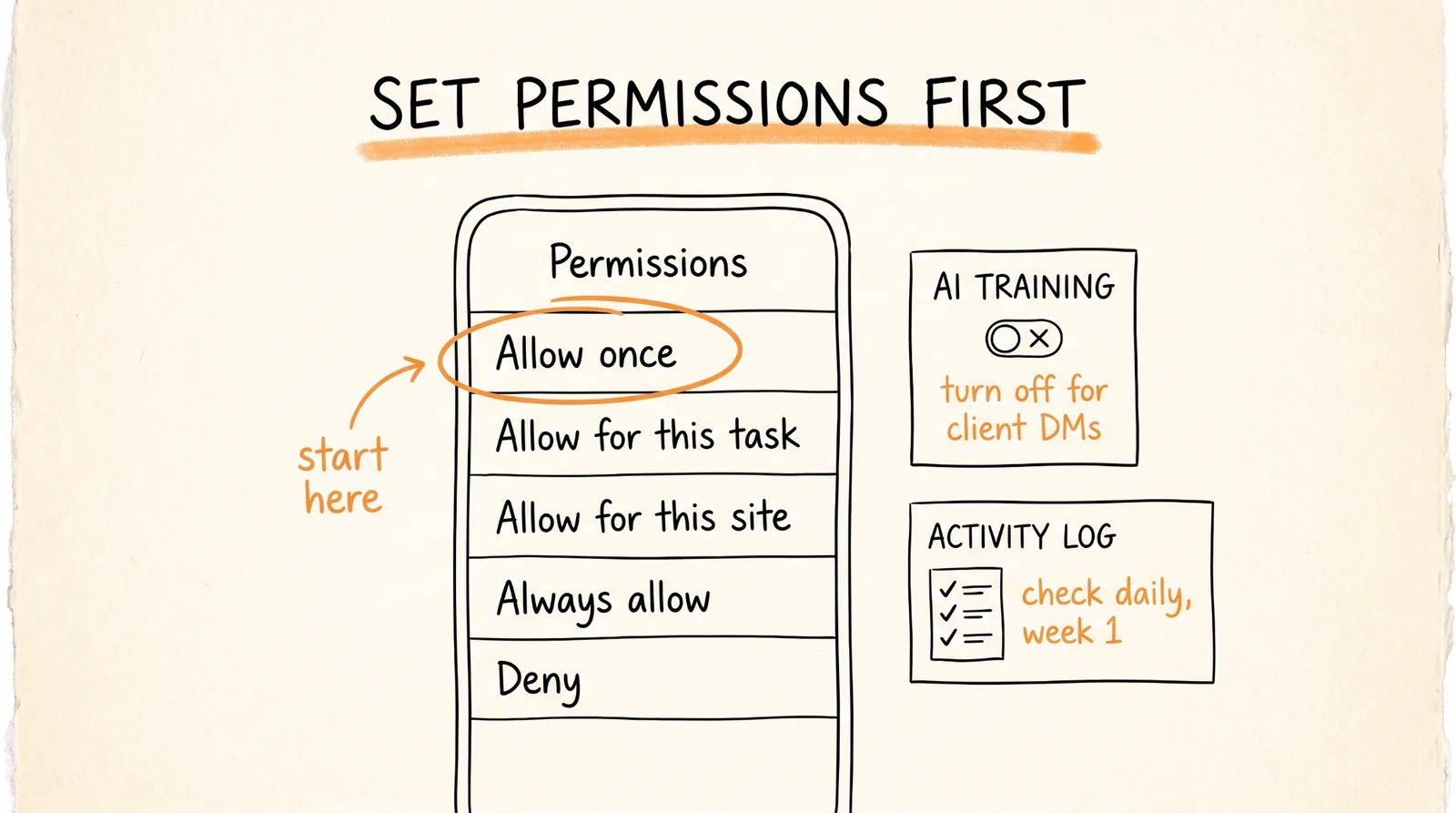
4. Set your permissions before anything else. Go to Settings, then Permissions, and set the connector default to "Ask for some actions." This means Muse asks you before it sends a message, makes a purchase, or shares anything. When it asks, you get five options: Allow once, Allow for this task, Allow for this site, Always allow, or Deny. Start strict. You can loosen it once you trust what it does.
5. Decide about AI training. Muse's "Help improve our AI models" setting is on by default. If you do not want your DMs used to train Meta's models, turn it off under Data controls. This matters more if you manage client accounts.
Step 2: Find Who Does Not Follow You Back (Prompt 1)
Open a chat with Muse and paste this:
Go through my Instagram account and compare the accounts I follow with the accounts that follow me. Give me a list of every account I follow that does not follow me back.
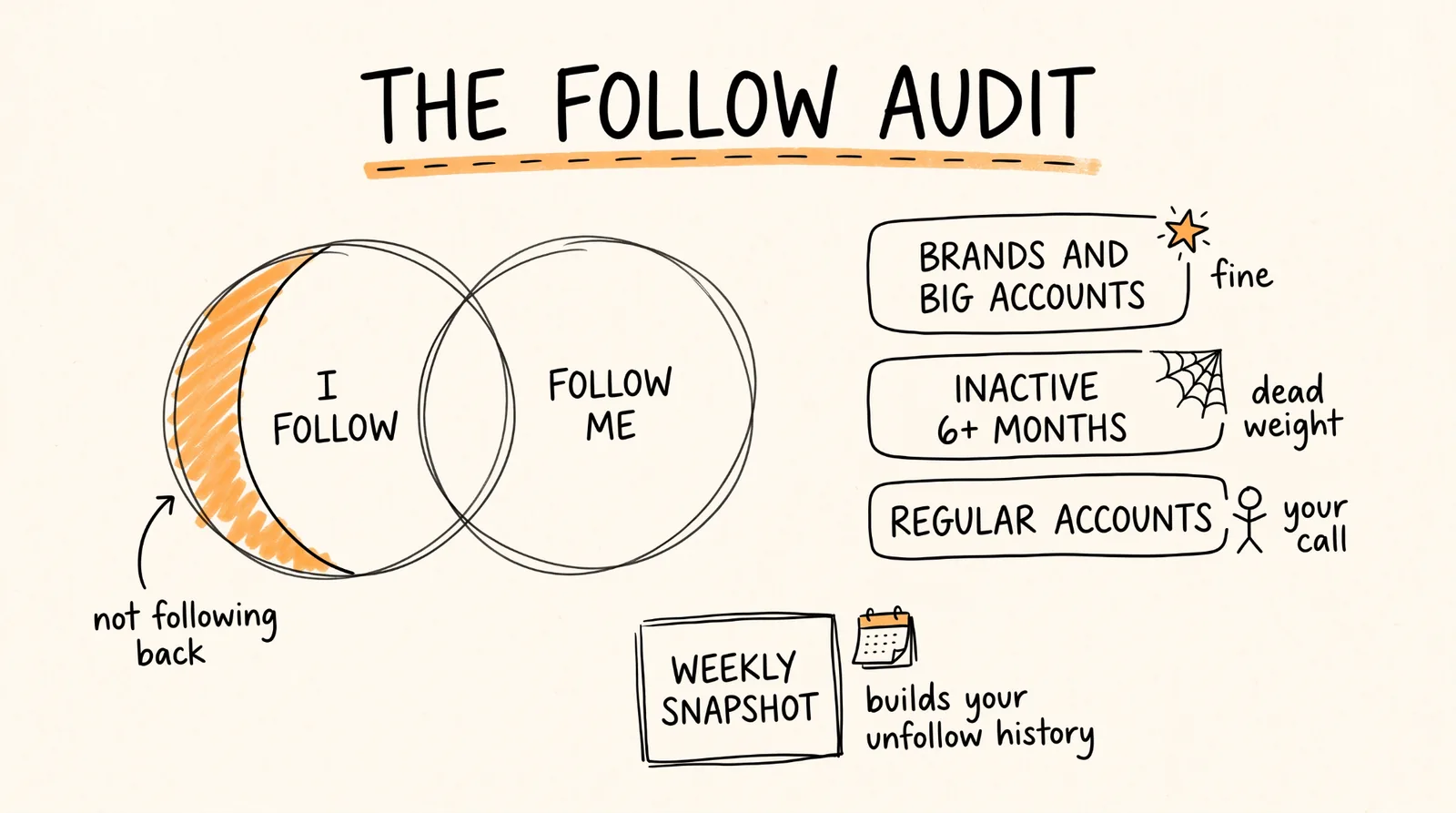
For each one, show the username, whether it is a verified or business account, and roughly how many followers it has. Sort them into three groups:
1. Big accounts and brands I probably followed on purpose
2. Accounts that look inactive or have not posted in 6 months
3. Regular accounts that do not follow back
Do not unfollow anyone. Just give me the list.
This replaces the follower-tracker apps that ask for your Instagram password, which is the fastest way to get flagged by Instagram. Muse reads your own account through Meta's own connection.
The groups matter. Most "not following back" lists are full of celebrities and brands you followed on purpose. Group 1 is fine. Group 2 is dead weight. Group 3 is where you decide.
About the "who unfollowed me" part. Instagram does not keep a history of who unfollowed you, so no tool, Muse included, can reach back a year and tell you. What Muse can do is start tracking from today. Add this:
Save a snapshot of my current followers list. Every Sunday at 9am, compare my followers to last week's snapshot and tell me who followed and who unfollowed me that week. Keep a running log.
In a few weeks you have a real unfollow history, built by Muse, going forward.
Step 3: The Morning DM Summary (Prompt 2)
This is the one that changes your day. Paste this:
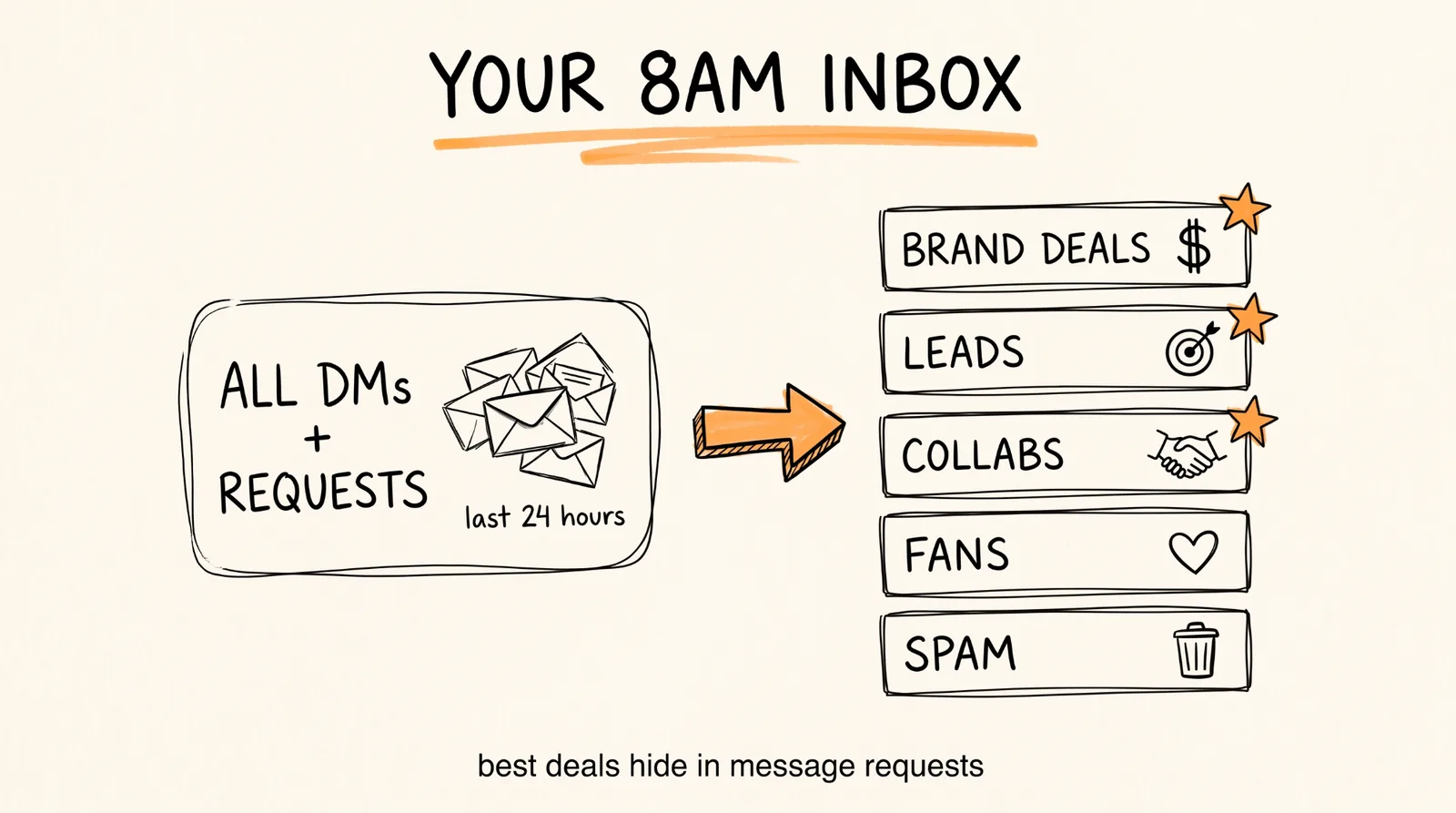
Every morning at 8am, go through all my Instagram DMs from the last 24 hours, including message requests. Give me a summary sorted into these categories:
1. Brand partnership and sponsorship inquiries
2. Leads asking about my services or pricing
3. Collaboration requests from other creators
4. Fan messages and questions
5. Spam, scams, and bots
For categories 1, 2, and 3, show the username, a one-line summary of what they want, and whether they mentioned a budget, a deadline, or a specific offer. Put the most urgent message at the top.
For categories 4 and 5, just give me the count and flag anything that looks like a scam or impersonation.
End with a list of anyone who messaged more than once and has not had a reply.
Muse runs this as a scheduled task. Meta built Muse to handle recurring jobs like daily check-ins and weekly summaries, and the result arrives as a message in your Muse chat, so it is the first thing you see when you open the app.
Change the categories to fit your business. A real estate agent might use buyer inquiries, seller inquiries, and agent referrals. A coach might use discovery call requests, client check-ins, and program questions.
Do not skip message requests. On most accounts, the best brand deals land in message requests because the brand does not follow you. That is the folder people forget to check.
Step 4: Draft Replies for Your Common DMs (Prompt 3)
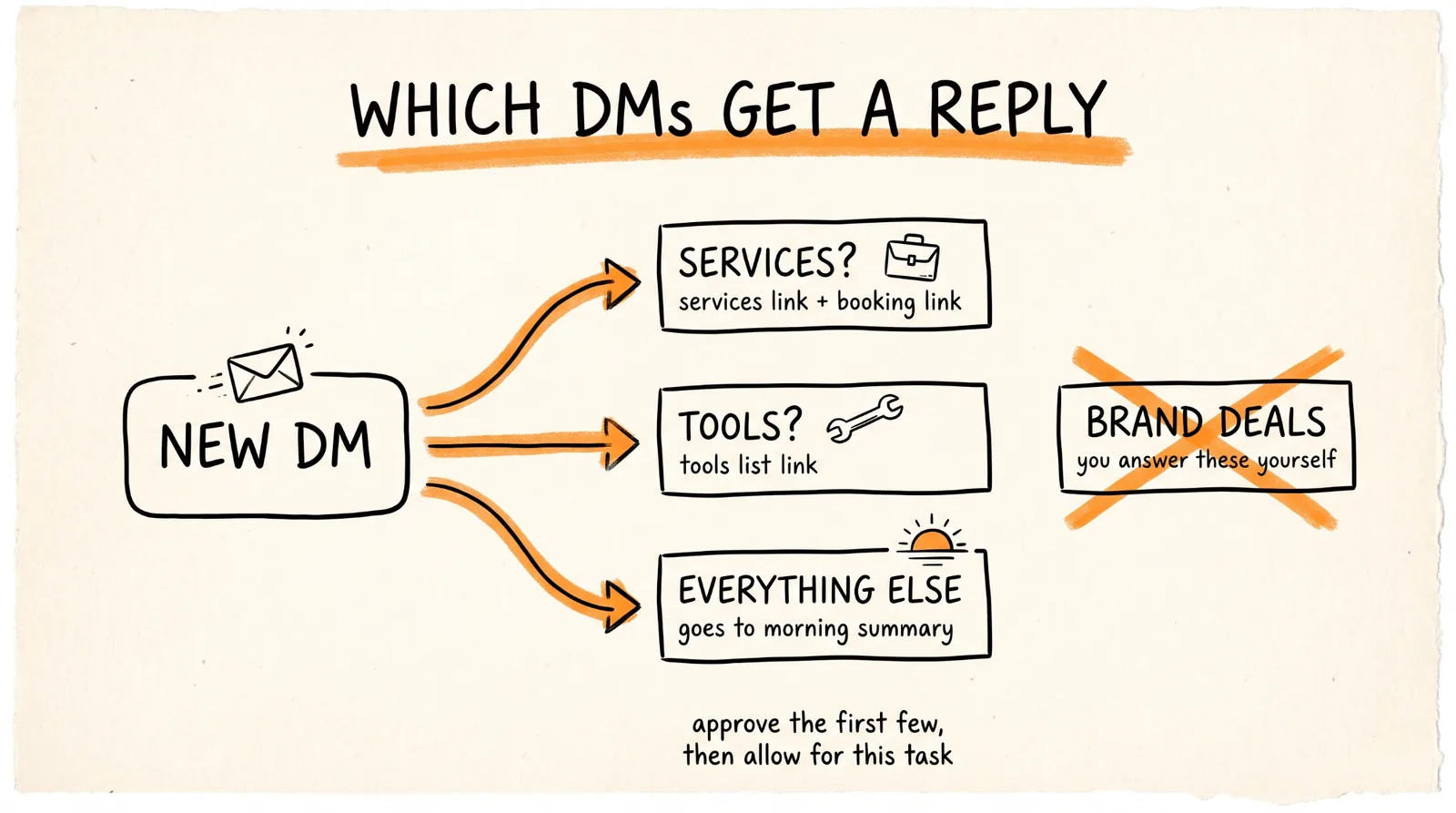
Most of your DMs ask the same three or four things. Paste this, with your own links and wording:
Check my Instagram DMs every hour. When a new message fits one of these, handle it like this:
If someone asks about my services, working with me, or pricing, reply with:
"Thanks for reaching out! Here's everything I offer: [SERVICES LINK]. If you want to chat, grab a time here: [BOOKING LINK]."
If someone asks what tools, apps, or software I use, reply with:
"I put together the full list here: [TOOLS LINK]."
For everything else, do not reply. Add it to my morning summary instead.
Only reply to messages from the last 24 hours. Never reply twice to the same person. Never reply to anything that looks like spam or a brand deal, since I want to answer those myself. Ask me before sending each reply until I tell you otherwise.
That last line is important. Every reply Muse sends is a write action, so with your permissions set to "Ask for some actions," Muse brings each reply to you for approval first. Approve a few, check they read right, and once you trust it, choose "Allow for this task" so it sends these two reply types without asking.
Keep brand deals out of the auto-replies. A brand reaching out about a paid partnership should never get a canned link. That is money, and it deserves a real answer from you.
Step 5: Know What Muse Is Not (Yet)
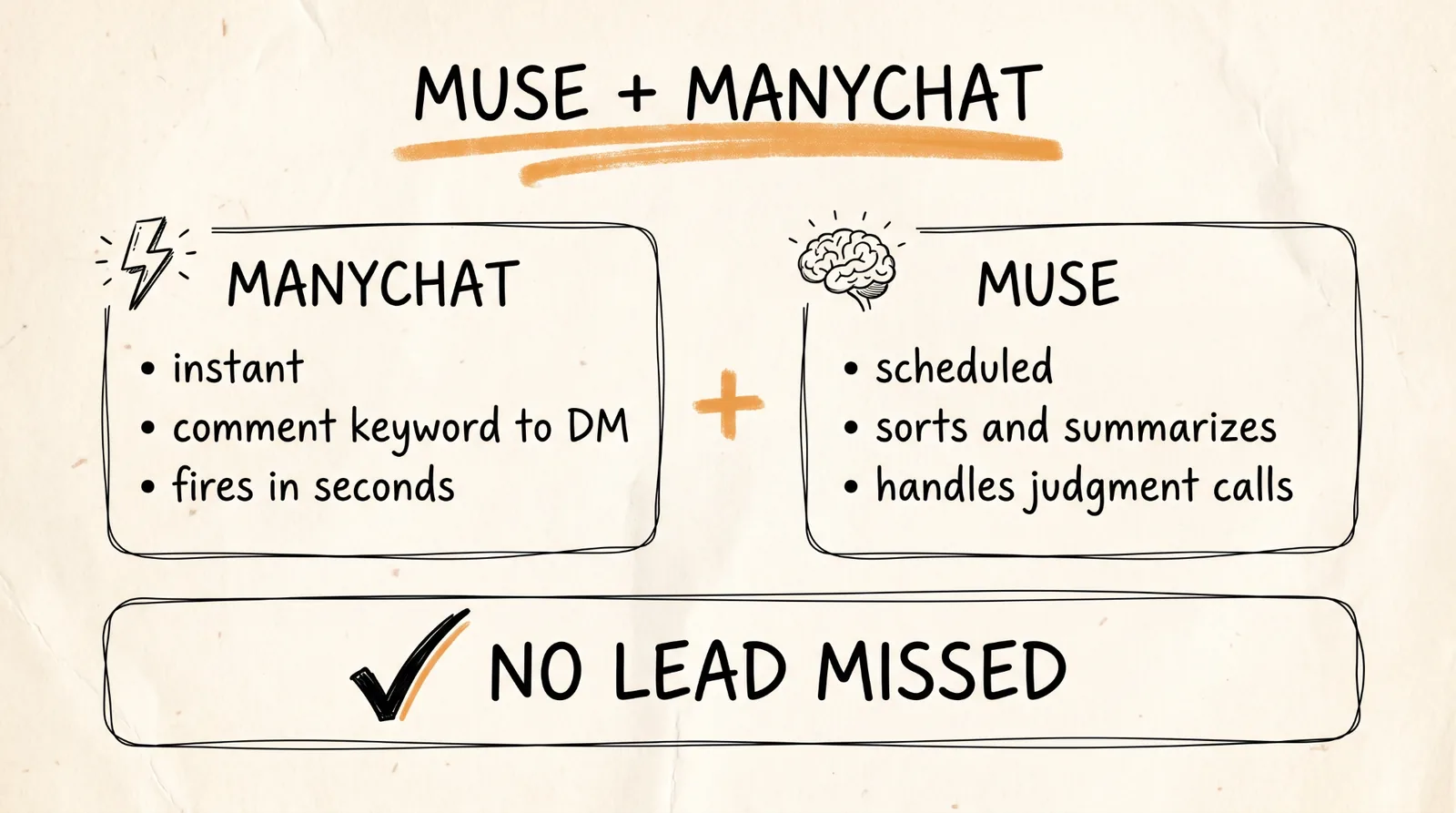
Being clear about this saves you from a missed lead.
Muse is not instant. It checks on the schedule you give it, like every hour. If you need a reply in five seconds, like "comment GUIDE and I'll DM you the link," that is still a job for a dedicated comment-to-DM tool like ManyChat, which runs on Meta's official messaging API and fires the moment someone comments. Use ManyChat for instant keyword replies and Muse for everything that needs judgment: sorting, summarizing, and handling the messages that do not fit a keyword.
Muse can make mistakes. Meta's own help pages say Muse may be inaccurate or take unexpected actions and that you should monitor it. Check the Activity log in Settings for the first week. It shows everything Muse did and every permission you granted.
Muse is brand new. It is in limited testing, features are shipping weekly, and some of what people claim online is not documented by Meta yet. If a prompt does not work, check the Activity log to see where it stopped, and rephrase.
Step 6: Bonus Prompts (Prompt 4)
Once the basics are running, these are worth adding.
Lead follow-up:
Every Friday at 4pm, find anyone who asked about my services in DMs this week, got my reply, and never booked a call. List them with what they originally asked so I can follow up personally.
Brand deal tracker:
Every time a brand or agency DMs me about a partnership, add them to a Google Sheet with the date, the brand name, the contact's username, what they are offering, and the budget if they mentioned one.
(Connect Google Sheets first under Settings, then Connectors.)
Weekly inbox report:
Every Monday at 8am, tell me how many DMs I got last week, how many were leads, how many brand inquiries came in, and which of my posts or reels people mentioned most in their messages.
That last one tells you which content is actually driving conversations, which is a better signal than likes.
When Things Go Wrong
Muse says it cannot see your Instagram. Your Instagram is not in the same Accounts Centre as the Meta account you signed into Muse with. Add it in the Instagram app under Settings, then Accounts Centre.
Muse can see your account but not your DMs. Check Settings, then Connectors, and make sure Instagram Messages is connected and allowed.
The morning summary did not show up. Ask Muse "show me my scheduled tasks." If it is not listed, paste Prompt 2 again and confirm the time and your time zone.
Replies are not going out. Your permissions are set to ask every time, and Muse is waiting for your approval. Open the Muse chat and approve, or switch to "Allow for this task" once you trust it.
A reply went to the wrong person. Tighten the rules in Prompt 3. Be specific about what counts as a service question, and tell Muse to skip anything it is unsure about and add it to the summary instead.
You hit your usage limit. The free tier refreshes weekly. Hourly checks on a busy inbox use more, so drop to every two or three hours, or upgrade to Power.
You are outside the US or Canada. Muse shows a waitlist. Join it and use a comment-to-DM tool like ManyChat in the meantime.
Rules to Remember
Start with "Ask for some actions." Loosen permissions only after you have watched it work.
Never auto-reply to brand deals. Those get a real answer from you.
Always include message requests in your summary. That is where the money hides.
Muse is scheduled, not instant. Use ManyChat for instant keyword replies.
Instagram has no unfollow history. Start the weekly snapshot today so you have one going forward.
Turn off AI training if you handle client DMs.
Check the Activity log every day for the first week.
You now have an agent that audits your following, hands you a sorted inbox every morning, and answers your most common DMs for you, all through Meta's own connection, with no password shared anywhere.
Don't want to figure this out alone? I walk members through every step inside the community. Join the Skool → skool.com/raycfu