
How to Build a Company Brain Any AI Can Use
Start here: Guide
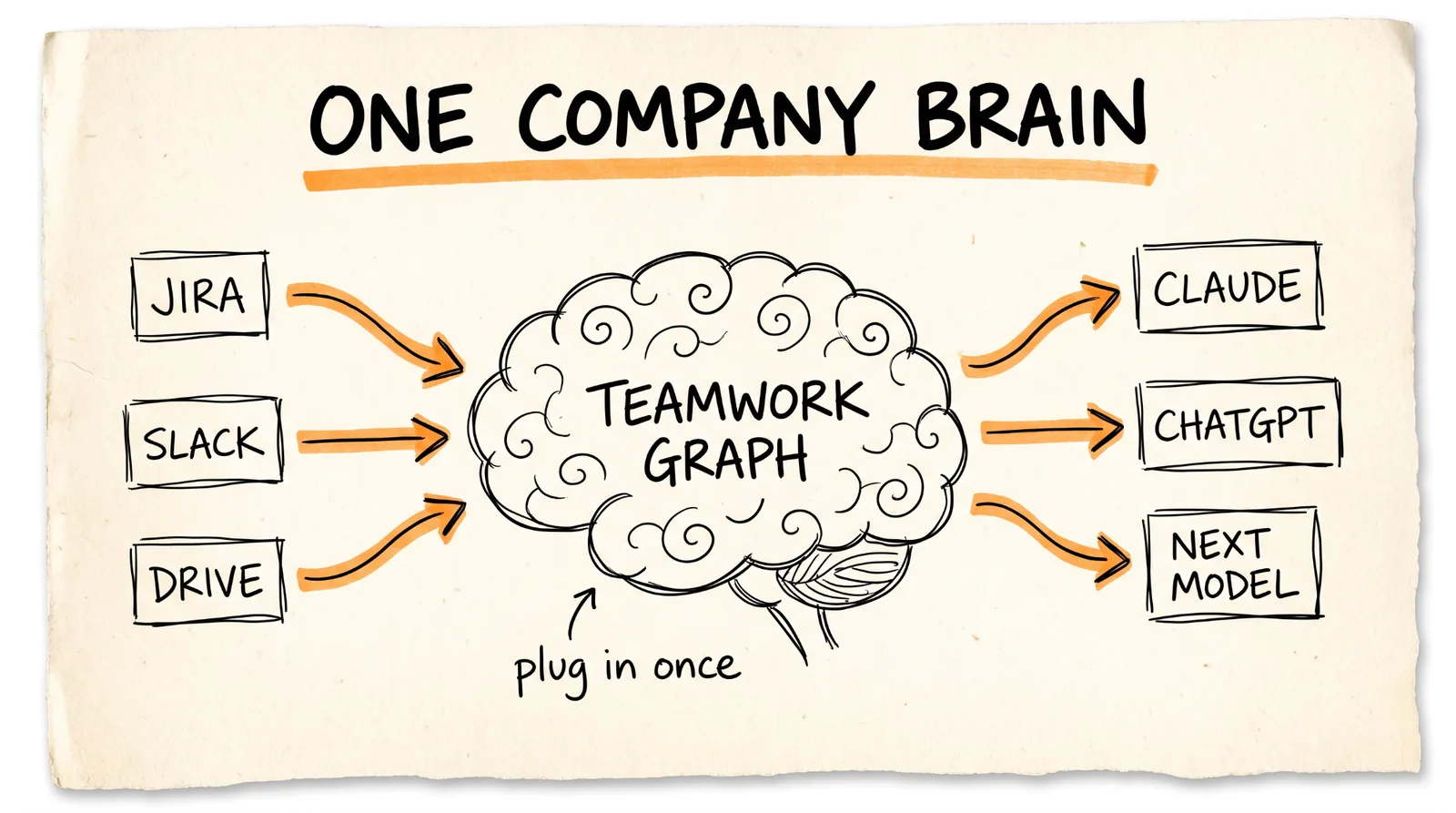
Every time a new AI model drops, you start from zero. You re-explain your projects, your decisions, and who's working on what, and a week later you do it all again in a different app. In this guide I'll show you how to put all of that in one place with Atlassian's Teamwork Graph, then plug that one brain into Claude, ChatGPT, or whatever model comes out next month through Atlassian's Rovo MCP Server.
What You Need
An Atlassian cloud site with Jira or Confluence on a Standard, Premium, or Enterprise plan. Paid plans come with Rovo credits, which is what the AI side runs on. Jira and Confluence Standard include 25 credits per user per month, and they're pooled across your whole company.
Admin access to your Atlassian organization, or someone on your team who has it. Connecting tools like Slack and Google Drive is an admin job.
A Claude or ChatGPT account. Claude Pro, Max, Team, or Enterprise works for this, and so does a ChatGPT plan that supports apps.
The tools your team already uses. Slack, Google Drive, GitHub, Zoom, Gong, and dozens more can all plug in.
Why This Works
Your company's knowledge is scattered across 20 tabs. The decision about pricing happened in a Slack thread. The spec is in a Google Doc. The task is in Jira. The person who owns it is somewhere in an org chart. No AI can answer "what did we decide about the launch date and who's handling it" because no single place holds all of that.
Teamwork Graph is Atlassian's fix for that. It's a map of how your work connects: which Slack thread led to which Jira ticket, which doc that ticket references, and which person owns each piece. Atlassian says Teamwork Graph comes with 100 ready-made connectors to outside tools.
The second half is MCP, which stands for Model Context Protocol. Think of it as a universal plug for AI. Normally you'd have to connect Jira, Confluence, Slack, and Drive to Claude one by one, and then do it all again for ChatGPT. With the Rovo MCP Server, you connect one thing, Atlassian, and every AI app that supports MCP gets the whole brain. When a better model comes out, you plug it in and it already knows your business.
Step 1: Give Your Brain Something to Remember
The brain only knows what's written down somewhere. So before you connect anything, make sure your decisions actually live in one place. The easiest way is a decision log in Confluence, one page per project.
Create a Confluence page called Decision Log and paste this in as the template:
DECISION LOG: [Project name]
Owner: [@name]
Date | Decision | Why | Who decided | Linked ticket
[YYYY-MM-DD] | [What we decided, one sentence] | [The reason, one sentence] | [@name] | [JIRA-123]
Rules for this page:
1. Add a row the same day a decision is made, even small ones.
2. If a decision changes, add a new row. Never edit the old one.
3. Link the Jira ticket so the decision connects to the work.
Then make sure every active project has an owner in Jira. "Who owns what" is one of the most useful things the brain can answer, and it can only answer it if the assignee field is filled in.
Step 2: Connect Your Tools to Teamwork Graph
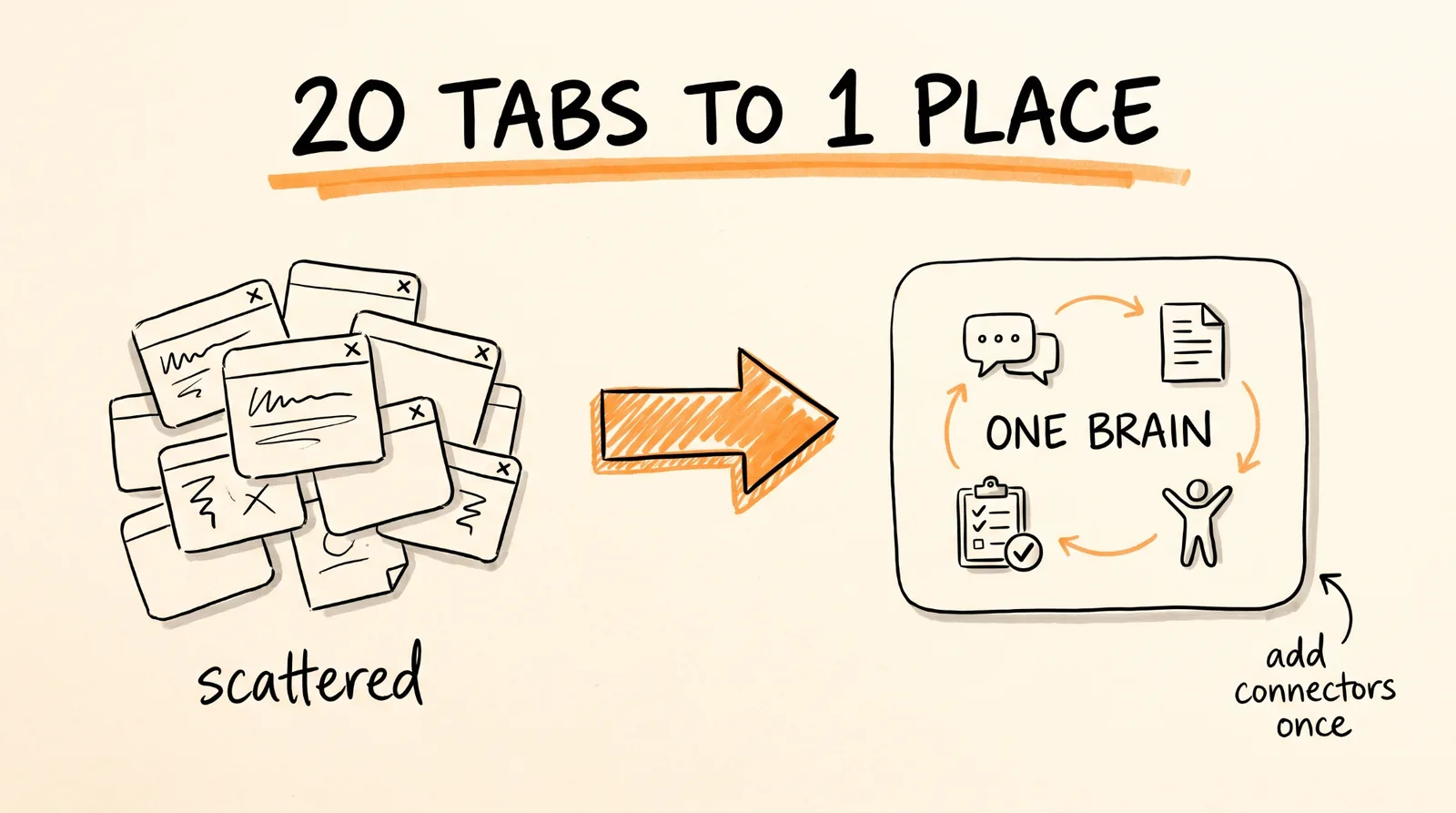
This is where you pull everything outside Atlassian into the same brain. Your Atlassian admin does this once for the whole company.
Go to admin.atlassian.com, pick your organization, then go to Connectors, then All connectors, and click Add connector. Start with the 2 that hold the most context for most teams: Slack and Google Drive. Then add whatever else your team lives in, like GitHub, Zoom, or Gong.
Google Drive is the only one that takes a few extra clicks. Atlassian gives you a Client ID and a set of permissions to copy. You paste those into the Google Admin console under Security, then Access and data control, then API controls, then Manage Domain Wide Delegation, and click Authorize. Back in Atlassian, you add a nickname and your Google Workspace admin email, and confirm.
Two things to know here. First, the brain respects existing permissions. If a Google Doc is private, it stays private. Each teammate connects their own Google account when Atlassian prompts them, so everyone only sees what they already had access to. Second, give it time. Atlassian says to expect a few hours before files show up in search, and large drives take longer.
Step 3: Test the Brain Inside Rovo First
Before you plug it into Claude or ChatGPT, check that the brain actually knows things. Rovo is Atlassian's own AI, and it's the fastest way to test. Open Rovo from your Atlassian site and ask it these:
What did we decide about [project name] in the last 30 days, and where was each decision made?
Who owns [project name], and what are they working on this week?
Find the Slack thread and the Google Doc where we discussed [topic], and summarize both.
What's blocking [project name] right now? Check Jira, Confluence, and Slack.
If the answers pull from Slack and Drive, not just Jira, your connectors are working. If they only come from Jira and Confluence, your connectors are still syncing. Give it a few more hours.
Step 4: Plug the Brain into Claude
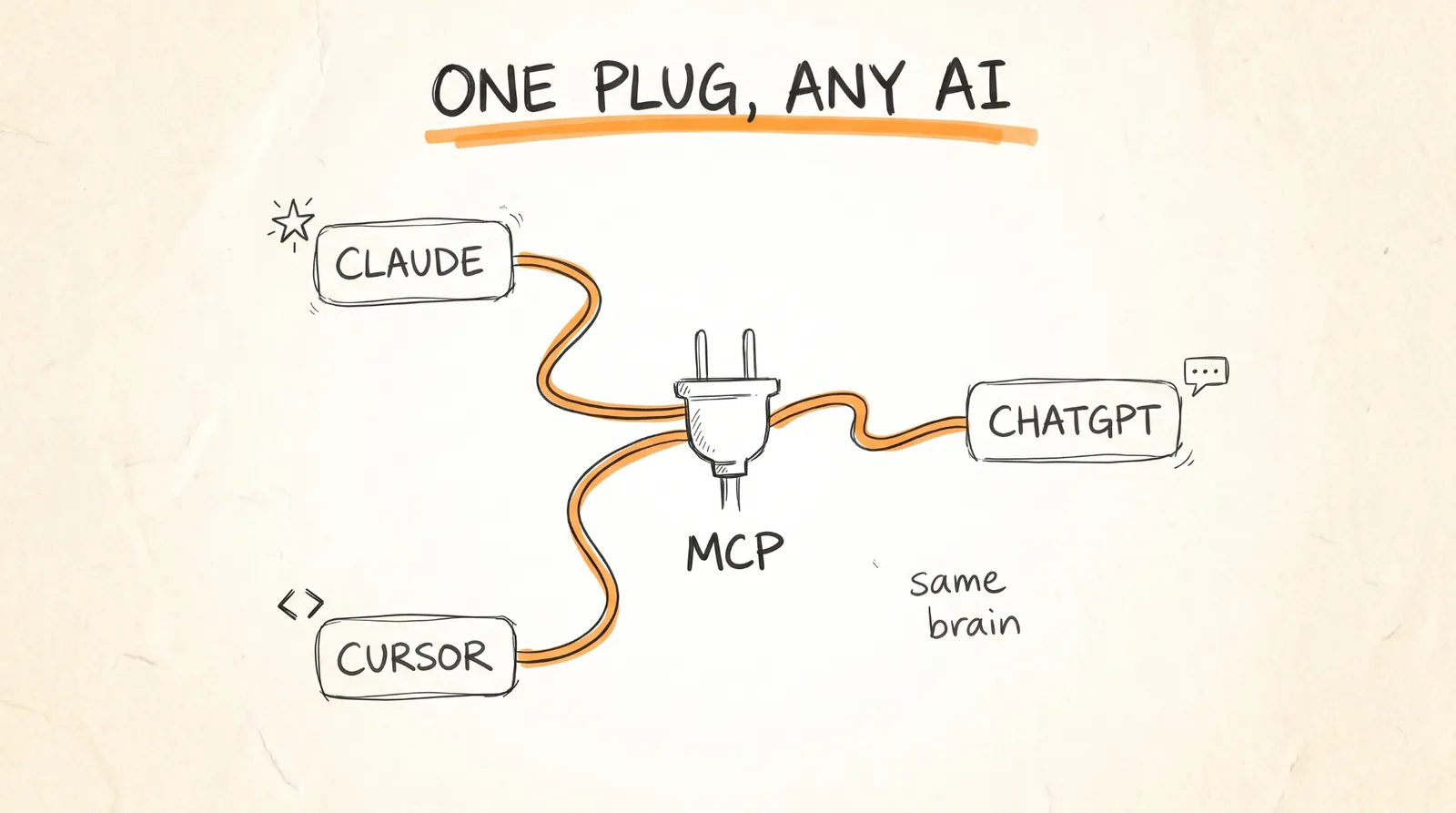
Now the part that makes it model proof. The Rovo MCP Server works with Claude, ChatGPT, Gemini, GitHub Copilot, Cursor, and any other app that supports MCP.
In Claude on the web, go to Settings, then Connectors, browse the directory, find Atlassian, and click Connect. Sign in with your Atlassian account and approve access. That's it.
In the Claude desktop app, go to Settings, then Extensions, then Browse extensions, then Plugins, and install Atlassian.
If you use Claude Code, run this in your terminal:
claude mcp add --transport http atlassian https://mcp.atlassian.com/v2/mcp
Then type /mcp inside Claude Code and sign in when it asks.
Every app uses the same address under the hood:
https://mcp.atlassian.com/v2/mcp
Step 5: Plug the Same Brain into ChatGPT
This is the whole point. You don't rebuild anything. In ChatGPT, open the apps directory, find Atlassian, and connect it with the same Atlassian login. ChatGPT now sees the exact same brain Claude does.
For any other AI app that supports MCP, look for a setting called custom connector or MCP server, and paste in the address from step 4. Atlassian has setup steps for Cursor, VS Code, Codex, Windsurf, and Gemini on its support site.
Step 6: Run the Before and After Test
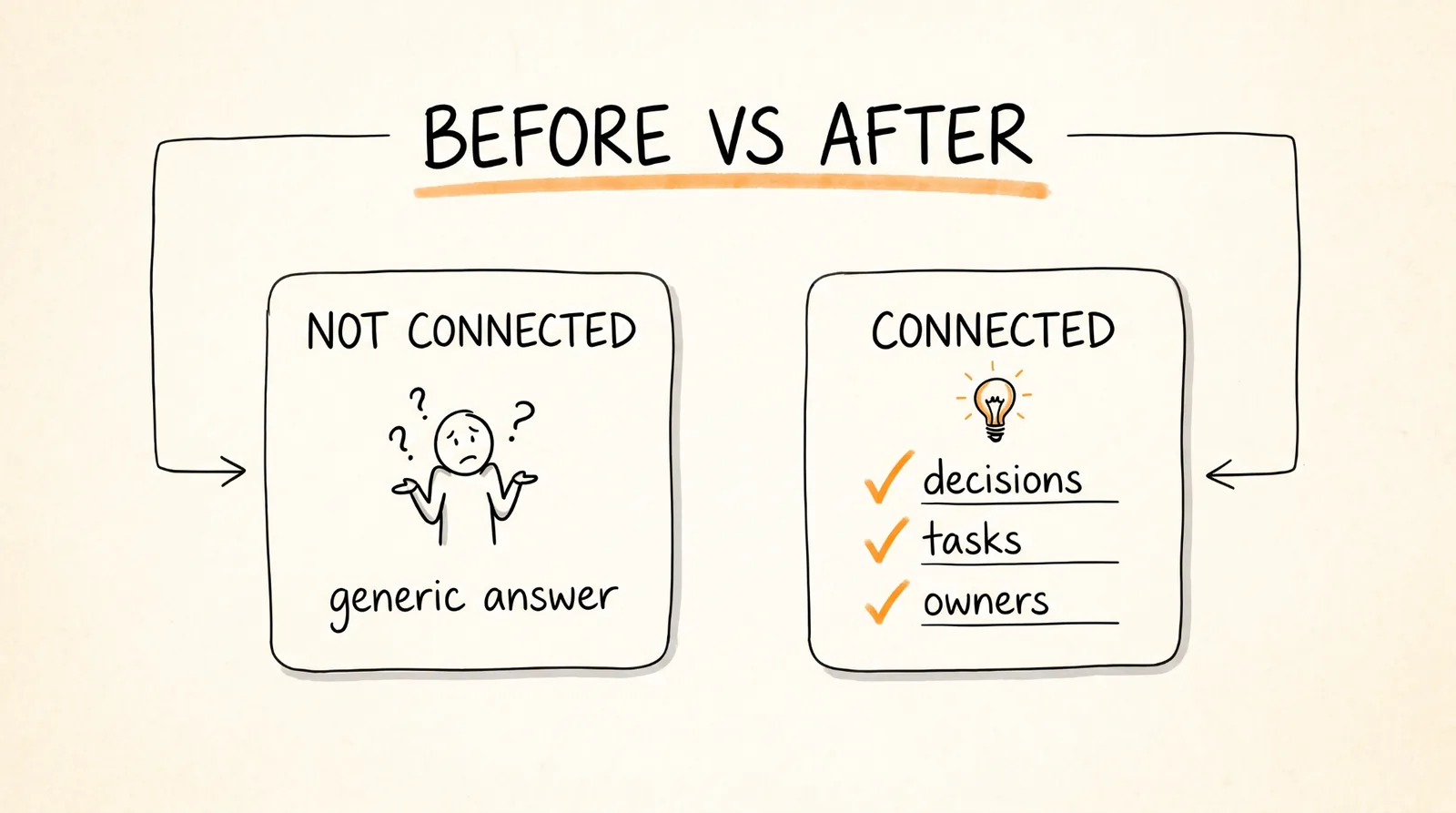
This is the test that shows why this matters. Open a chat in Claude with the Atlassian connector turned off and ask:
Give me a status update on [project name]. What have we decided, what's in progress, and who owns each piece?
You'll get a generic answer, or Claude will tell you it doesn't know your project. Now turn the Atlassian connector on, start a new chat, and ask the exact same question. This time it should come back with the actual decisions your team made, the tasks in progress, and who owns each one, with links back to the Jira tickets and pages it pulled from.
Do the same thing in ChatGPT. Same brain, same answer, different model.
Step 7: Tell Your AI to Check the Brain First
Connecting the brain is half of it. The other half is making sure the AI actually uses it instead of guessing. In Claude, create a Project and paste this into the project instructions. In ChatGPT, paste it into your custom instructions or a custom GPT.
You have access to our company's Atlassian workspace, including Jira, Confluence, and everything connected to Teamwork Graph (Slack, Google Drive, and more).
Before answering any question about our projects, customers, decisions, or team:
1. Search Atlassian first. Do not answer from general knowledge if our workspace might have the answer.
2. Cite where each fact came from with a link: the Jira ticket, Confluence page, Slack thread, or Drive file.
3. If two sources disagree, show me both and say which one is newer.
4. If you can't find something, say "I couldn't find this in Atlassian" instead of guessing.
5. When you name who owns something, use the assignee or owner field, not a guess from who talked about it most.
Never create, edit, or delete anything in Jira or Confluence unless I ask you to in that message.
That last line matters. The MCP server can write as well as read, and you want the AI to ask before it changes anything.
Keep the Brain from Going Stale
A brain is only as good as what goes into it. Once a week, run this in Claude or ChatGPT with the connector on:
Look at our Slack channels and Jira tickets from the last 7 days. Find every decision that was made in Slack but isn't in a Confluence decision log or a Jira ticket. For each one, give me: the decision in one sentence, the Slack link, who made it, and which project's decision log it belongs in. Don't add anything yourself, just give me the list.
It takes about 5 minutes to copy the important ones into your decision logs, and it's the habit that keeps the brain sharp.
When the Next Model Drops
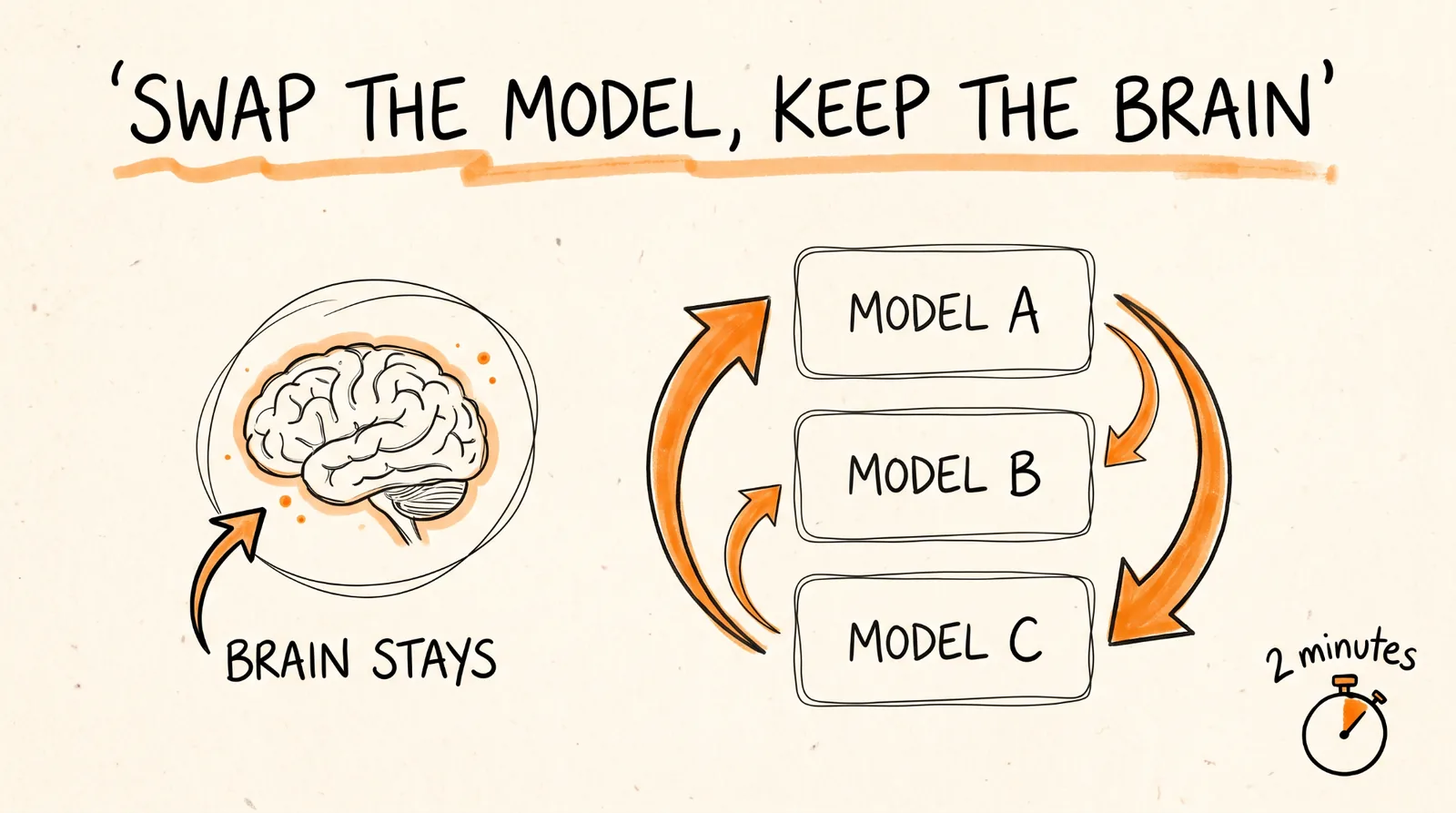
This is where the setup pays off. When a new model comes out, here's everything you do:
Connect Atlassian in the new app, which takes about 2 minutes.
Paste your instructions from step 7 into it.
Run the before and after test from step 6.
That's it. No re-explaining your company. The brain stays where it is and the model is just the part you swap out.
The Proof
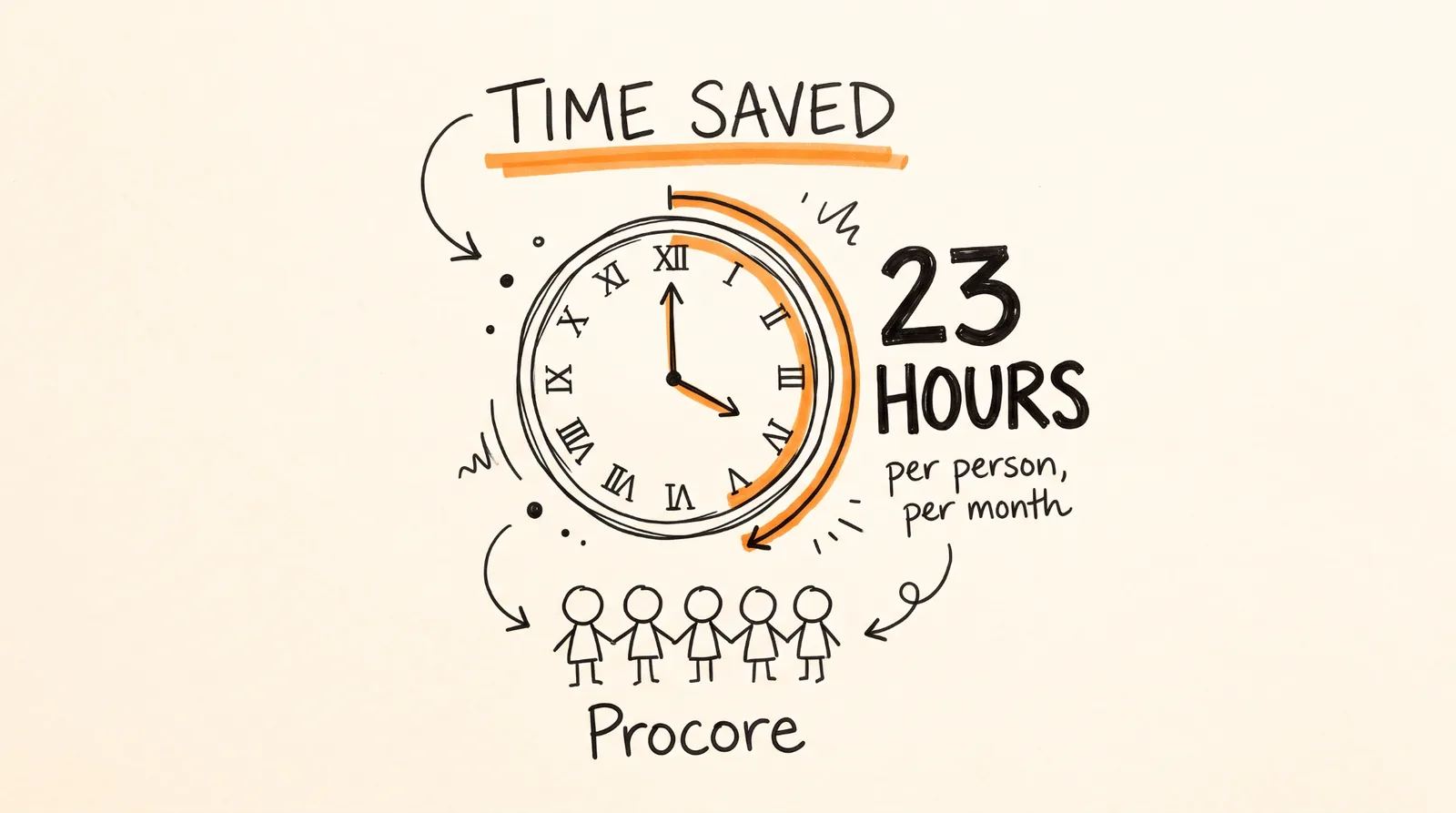
Atlassian's case study with Procore, the construction software company, says Rovo saves its people an average of 23 hours a month each. The same case study puts it at 46 minutes a day for the people using it. For a team of 50, 23 hours each is over 1,100 hours a month.
What It Costs and How to Stay in Control
Every AI call through the MCP server, including searches of the Teamwork Graph, uses Rovo credits from your company's pool. Standard plans start at 25 credits per user per month for Jira or Confluence. Starting December 3, 2026, extra usage past your pool is billed at $0.01 per credit, and it's on by default. If you're on a tight budget, have your admin set a spending cap in Atlassian Administration.
Admins also get real controls here. They can choose whether AI tools can read, write, or delete, allow or block access by site or space, and every tool call gets logged. If your company handles sensitive data, set those before you roll this out to everyone.
When Things Go Wrong
The answers only come from Jira and Confluence. Your connectors are still syncing, or the teammate asking hasn't connected their own Slack or Google account yet. Check Connectors in admin.atlassian.com and wait a few hours.
Claude or ChatGPT can't connect. Your admin may have turned off API token sign-in or blocked the MCP server. Ask them to check the Rovo MCP Server settings in Atlassian Administration, and sign in through the normal browser login instead of a token.
The AI answers without checking Atlassian. You skipped step 7, or you're in a chat outside the Project where the instructions live. Start the chat inside the Project.
A file you know exists doesn't show up. It's probably private in Google Drive. The brain only finds files that are shared with the person asking.
Your credits run out mid-month. Look at which teams are using the most in Atlassian Administration, and set a spending cap before the overage billing starts.
Don't want to figure this out alone? I walk members through every step inside the community. Join the Skool → skool.com/raycfu