
How to Use Claude Dispatch: The Complete Beginner's Guide
Don't want to figure this out alone? I walk members through every step inside the community. Join the Skool → skool.com/raycfu
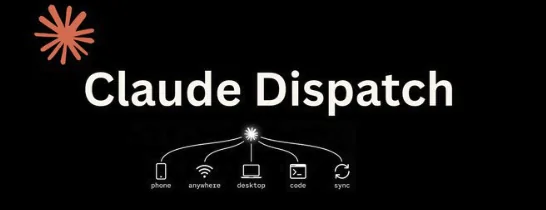
Claude Dispatch lets you text your AI from your phone and it runs tasks on your computer while you're away. You send a task from anywhere. Claude does the work on your desktop. You come back to finished work.
This guide covers everything: what Dispatch is, how to set it up in under 5 minutes, the best things you can do with it right now, how to make it more reliable, and the honest limitations you need to know about.
What is Claude Dispatch?
Dispatch creates one persistent conversation between the Claude app on your phone and the Claude Desktop app on your computer. Your phone sends instructions. Your computer does the work. Everything Claude does (reading files, using connectors, loading skills) happens on your desktop. Your phone is just the remote control.
Think of it as a walkie-talkie to a computer that's already running.
What it is NOT:
- It is not a mobile version of Cowork. You can't browse files or manage settings from your phone.
- It is not a cloud agent. There's no server running somewhere. Everything happens on your machine.
- It is not a new AI model. It's the same Claude, just accessible from your pocket.
Three things to understand before you start:
Your computer must stay awake. If your Mac goes to sleep or the Claude Desktop app closes, Dispatch stops. This is a security feature, not a bug. Your files stay local. Your data stays on your machine. The tradeoff is you need to keep the lid open. Turn on the "keep awake" toggle during setup or adjust your power settings manually.
Everything you built in Cowork carries over. Your context files, your skills, your connectors, your global instructions. All of it loads into the Dispatch session automatically. This is the key insight. Dispatch is not starting from zero. It inherits your entire setup. The system you spent time building is now accessible from your pocket.
It's a research preview. MacStories tested it and reported roughly 50/50 reliability on complex tasks. Information retrieval works well. Cross-app actions are inconsistent. This is early software. But Cowork itself went from rough preview to daily workhorse in under eight weeks. Dispatch will follow the same path.
Who Can Use It
You need a paid Claude plan. Any paid plan (Pro at $20/month or Max at $100-200/month) now has access. You need the latest versions of both the Claude Desktop app and the Claude mobile app.
How to Set It Up
What you need:
- Claude Desktop app (latest version) on your Mac or Windows PC. Download from claude.com/download if you need to update.
- Claude mobile app (latest version) on your iPhone or Android. Update from your app store.
- Internet connection on both devices. Your phone talks to your computer through the internet, not Bluetooth or local Wi-Fi.
Step 1: Open Dispatch on your desktop
Launch Claude Desktop. Click the Cowork tab. In the left sidebar, you'll see a new option called "Dispatch." Click it. You'll see a page explaining the feature. Click "Get started."
On the next screen, you get two toggles:
- File access: Lets Claude use your folders, skills, and connectors. Turn this ON. Without it, Claude can only chat. With it, Claude can actually do work.
- Keep computer awake: Prevents your Mac from sleeping while Dispatch is active. Turn this ON. This is the most common reason Dispatch tasks fail. If your computer sleeps, everything stops.
Step 2: Pair your phone
A QR code appears on your desktop screen. Open the Claude app on your phone. You'll see a new "Dispatch" entry in the sidebar. Tap it. Scan the QR code.
That's it. No API keys. No configuration files. No OAuth. Scan and go.
Step 3: Test the connection
From your phone, type: "What files do you have access to right now?"
Claude should respond with a list of folders and files from your Cowork setup. If it does, you're live. If it doesn't, check that file access is toggled on in the Dispatch settings on your desktop.
Total setup time: under 5 minutes. Most people finish in about 2 minutes.
Before You Start Using Dispatch: Set Up Your Foundation
Dispatch is only as good as your Cowork setup. If your Cowork is bare, Dispatch has nothing to work with. Here's the foundation you need.
Create your context files
Make a folder called "Claude Context" on your computer and create three files:
about-me.md: Who you are, what you do, your role, your industry, what your day-to-day looks like.
brand-voice.md: How you communicate. Phrases you use. What tone sounds right. Examples of writing you're proud of. Words you hate.
working-style.md: How you want Claude to behave. Do you want questions first? Short or long outputs? What file formats do you prefer?
Select this folder in Cowork so Claude can read it. These files are what turn Dispatch from a chatbot into an assistant that actually knows you.
Set global instructions
Go to Settings, then Cowork in the desktop app. Click "Edit" next to Global Instructions. Paste in the key points from your context files: who you are, how you communicate, your output preferences.
Add this line specifically for Dispatch: "When receiving a message via Dispatch, confirm the task before executing. If any step is ambiguous, ask for clarification before proceeding."
This prevents Claude from misinterpreting a short phone message and going in the wrong direction.
Connect your tools
Go to Settings, then Connectors. Connect the tools you use most: Gmail, Google Calendar, Slack, Google Drive, Notion, Figma, Asana, or whatever else is in your workflow. There are 38+ connectors available and they're free on all plans.
You only do this once. After that, Claude can pull live data from these tools in every Dispatch session. This is what makes Dispatch powerful. You text "summarize my emails" and it actually reads your Gmail because the connector is already set up.
Install relevant skills
If you have skills installed (meeting prep, expense processing, content drafting, etc.), Dispatch loads them automatically. When you text "prep for my 2pm meeting" from your phone, Claude loads your meeting prep skill and runs the whole workflow.
Skills are especially important for Dispatch because phone messages tend to be short. You don't want to type detailed instructions on a phone keyboard. You want to say "do the thing" and have Claude know exactly what that means.
The Best Things You Can Do With Dispatch Right Now
Based on testing from MacStories, FindSkill.ai, and community reports, here's what works and what doesn't.
What Works Reliably (80%+ success rate)
Morning inbox triage from bed
Text: "Summarize my top 10 unread emails and flag anything urgent."
By the time you're brushing your teeth, you know what your day looks like. This works because it's information retrieval through your Gmail connector. Dispatch excels at pulling data and summarizing it.
File lookups while you're away
Text: "Find the PDF I downloaded last week about the Q1 budget."
Instead of remoting into your computer or trying to remember the filename, Dispatch searches your files and sends back what it finds. Fast and reliable.
Meeting prep on the commute
Text: "Check my calendar for today and prepare briefing docs for each meeting using files from my project folder."
You walk into the office with prep already done. This combines your calendar connector with file access and your meeting prep skill.
Quick research summaries
Text: "Read the three most recent documents in my Research folder and give me a one-paragraph summary of each."
Perfect for catching up on reading you've been putting off. Claude reads the files on your desktop and sends the summaries to your phone.
Notion and Slack catch-ups
Text: "Summarize my recent Notion notes" or "What were the key messages in the marketing Slack channel today?"
If you have these connectors set up, Dispatch pulls the data and delivers a clean summary. Tested and working by multiple reviewers.
Expense processing
Text: "Process all receipt images from my receipts folder and create a categorized spreadsheet."
If you have an expense processing skill, Dispatch loads it automatically and runs the whole workflow. You come back to a finished spreadsheet.
Adding content to connected apps
Text: "Add this URL to my Notion reading list database."
Simple write operations to connected tools work well. One action, one destination, reliable results.
Finding screenshots and specific files
Text: "Find screenshots from last Tuesday that have the word 'dashboard' in the filename."
Dispatch searches your local files by name, date, and metadata. Quick and reliable for finding things you'd otherwise have to dig through folders for.
What Works Sometimes (50-70% success rate)
Creating documents from templates
Text: "Draft a client proposal for the Anderson account using my proposal template and the latest email thread."
This involves multiple steps: reading emails, loading a template, generating content. Works when all connectors respond cleanly. Fails when one step times out.
Multi-step file organization
Text: "Organize everything in my Downloads folder by file type."
This works but can be slow. For large folders, expect some lag. Results appear gradually.
Spreadsheet creation from raw data
Text: "Create an Excel spreadsheet summarizing the data in the three CSV files in my analytics folder."
Works when the files are clean and straightforward. Complex data or ambiguous column names can cause issues.
What to Avoid For Now (Unreliable in the preview)
Cross-app workflow chains
Text: "Read this email, create a task in Notion, and send a summary to Slack."
Multi-step workflows that chain multiple connectors are the most likely to fail. Each individual step works. The chaining is inconsistent. Send the tasks separately instead.
Browser-based actions
Dispatch can trigger browser actions through Cowork, but reliability is low right now.
Sharing or sending outputs
MacStories specifically found that summarizing and finding data worked well, but sharing from Claude did not. If your workflow ends with "and send it to someone," do the sending yourself for now.
Tips for Getting Better Results
Keep tasks focused and specific
Good: "Read sales-march-2026.csv from my Documents folder and create a 3-page PDF report with category-by-category revenue trend charts."
Bad: "Do something with my sales data."
The more specific you are, the better Dispatch performs. Phone prompts tend to be short, but that doesn't mean they should be vague.
One task per message
Don't chain five things into one message. Send them separately. "Summarize my emails" then "Check my calendar" then "Prep for my meeting." Each task gets full attention and you can verify each one worked before moving on.
Test while you can watch
Run every new Dispatch workflow while you're near your computer first. Watch what Claude does on the desktop while you send instructions from your phone. See where it succeeds and where it stumbles. Only add workflows to your "dispatch from anywhere" list after they've worked three times in a row.
Use skills for repeated workflows
Every workflow you run more than twice should be a skill. "Process my receipts" should trigger a skill that knows exactly how you categorize expenses, what format you want the spreadsheet in, and where to save it. Without a skill, you'd have to explain all of that every time.
Check back manually
Dispatch doesn't have push notifications yet. When Claude finishes a task, your phone doesn't buzz. You have to manually open the Dispatch thread to see results. Check back periodically or set a reminder.
The 5-Minute Morning Dispatch Routine
Here's a routine you can start using tomorrow.
Before getting out of bed: Pick up your phone. Open Claude. Go to Dispatch. Type: "Good morning. Summarize my top emails, check my calendar for today, and list any files that changed in my project folder yesterday." Put the phone down. Get ready for your day.
While having breakfast (15-20 minutes later): Check Dispatch. Your briefing is waiting. If anything needs action, text: "Draft a reply to the email from [person] about [topic]. Keep it under 100 words."
Commute or transition: Text one more task: "Prepare a briefing doc for my 10am meeting using the latest files in my project folder." By the time you sit down at your desk, the briefing is done.
Three messages. Five minutes of phone time. An hour of work completed before you touch your keyboard.
How Dispatch Compares to OpenClaw
Before Dispatch, the only way to control an AI agent remotely was OpenClaw. Here's the honest comparison.
OpenClaw requires: A dedicated computer (most people buy a Mac Mini), Node.js 22+, a WebSocket gateway, extensive configuration, Telegram setup, and significant technical knowledge.
Dispatch requires: A QR code scan.
OpenClaw advantages: It runs 24/7 without your laptop. It has cron jobs and heartbeat features for proactive tasks. It supports multi-agent setups. It connects to WhatsApp, Telegram, Discord, and Slack. It has a more mature ecosystem for always-on autonomy.
Dispatch advantages: Zero configuration. Works with your existing Cowork setup (context files, skills, connectors). No dedicated hardware needed. No terminal or command line. Accessible to anyone with a Claude subscription. Inherits your entire Cowork architecture automatically.
Bottom line: OpenClaw is for developers and power users who want always-on autonomous agents. Dispatch is for everyone else who just wants to text their AI and get work done.
Current Limitations (Be Honest With Yourself)
No notifications. When Claude finishes a task, your phone doesn't buzz. You have to check manually.
One thread only. Everything lives in a single persistent thread. If you send five tasks, they run sequentially in the same context.
No scheduled tasks from Dispatch. Your existing scheduled tasks still run normally, but you can't create or modify them from your phone.
Speed is inconsistent. Some tasks return in seconds. Others take minutes. Complex file operations can feel slow.
No mobile Cowork. You can't browse files, manage skills, or adjust settings from your phone. You can only send messages and receive responses.
Computer must stay awake. If your Mac sleeps or the app closes, Dispatch goes dark.
These limitations are real. They're also temporary. Every major Claude feature has improved dramatically within 60 days of launch. Build the habit now so you're ready when the improvements come.
You just read the full playbook. Most people will close this tab and never implement it. The ones who do usually hit a wall around the technical setup and quit.
Inside the Skool, I walk you through the exact build step-by-step, troubleshoot your setup live in the community, and share the scripts and templates I use to actually land paying clients.
If you want the shortcut instead of the long way around: