
How to Set Up Stanford's Free Jarvis
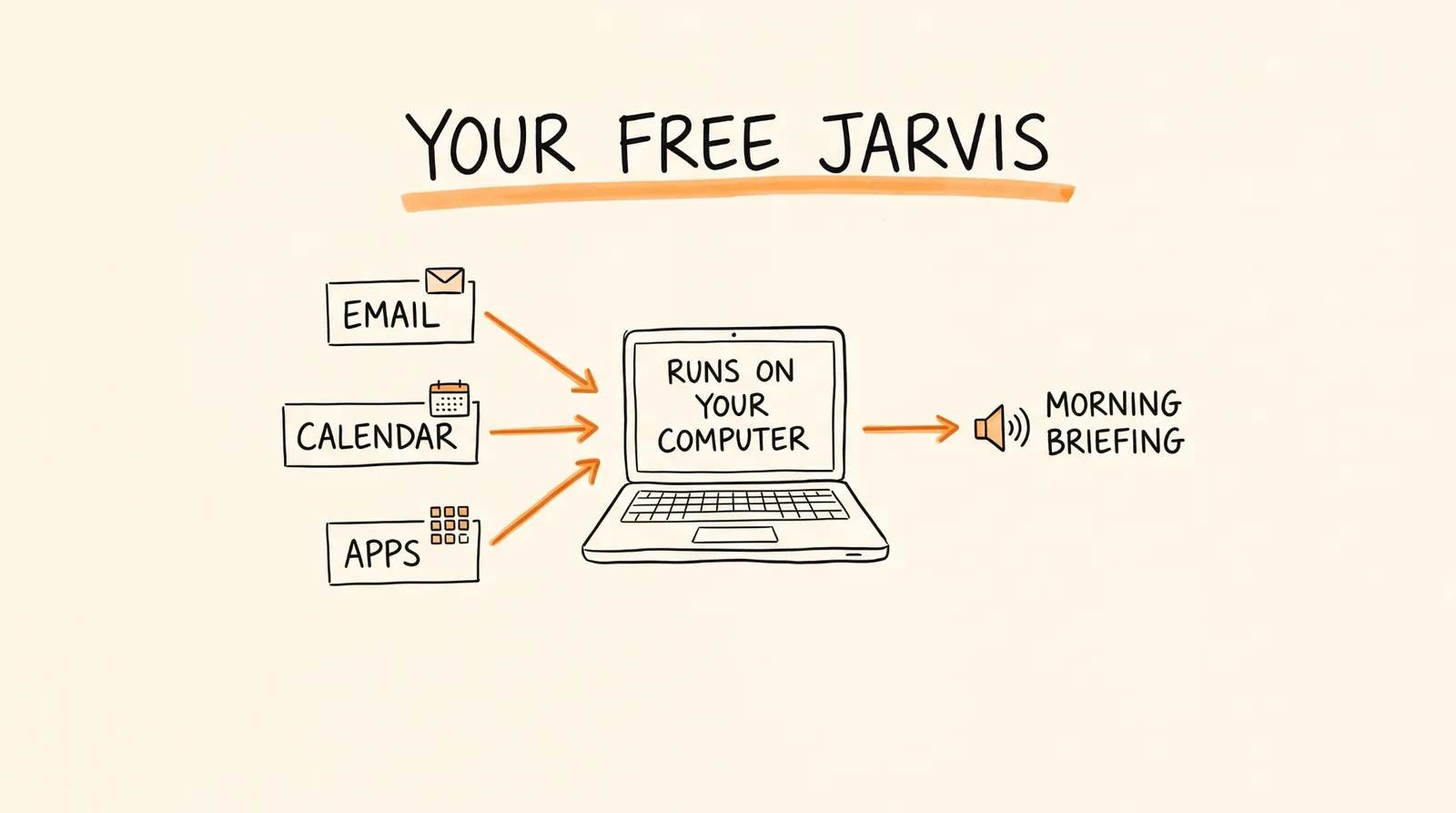
Get OpenJarvis here: https://github.com/open-jarvis/OpenJarvis
Stanford researchers open sourced OpenJarvis, a personal AI assistant that runs on your own computer. Every morning it reads your email, calendar, and the apps you connect, then talks you through your day like a COO.
Don't want to figure this out alone? I walk members through every step inside the community. Join the Skool → skool.com/raycfu
What You Need
Claude Code.
A Mac, Linux, or Windows computer. The AI runs on your machine, so more memory means you can run bigger models.
A Google account for Gmail and Calendar.
Step 1: Have Claude Code Install It
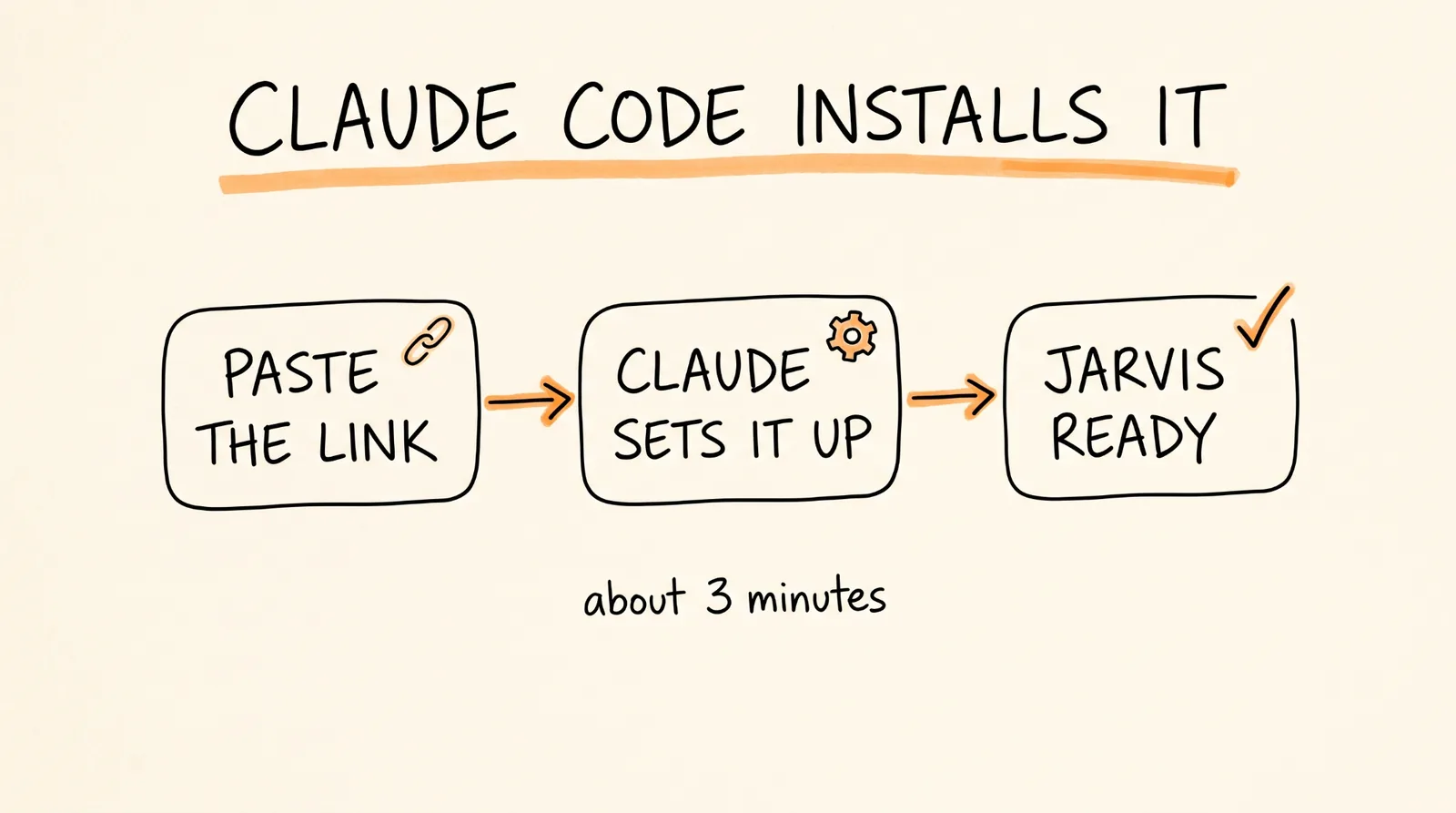
Open Claude Code in an empty folder and paste this:
Install OpenJarvis from https://github.com/open-jarvis/OpenJarvis on my computer.
1. Before you run anything, tell me in plain English what it installs and what it sends over the network.
2. Run the official installer for my operating system. It sets up Python, Ollama, and a starter model.
3. Run jarvis doctor and fix anything it flags.
4. Set it up with the morning digest preset for my computer: morning-digest-mac on a Mac, morning-digest-linux on Linux.
5. Pull the qwen3.5:9b model with Ollama and set it as the default model.
6. Keep the server on 127.0.0.1 so it only runs on my computer.
Walk me through anything that needs me to click or sign in.
If you'd rather run it yourself, this is the one-line install for Mac and Linux:
curl -fsSL https://open-jarvis.github.io/OpenJarvis/install.sh | bash
The install takes about 3 minutes on a good connection. When it's done, type jarvis to start it.
Step 2: Connect Your Apps
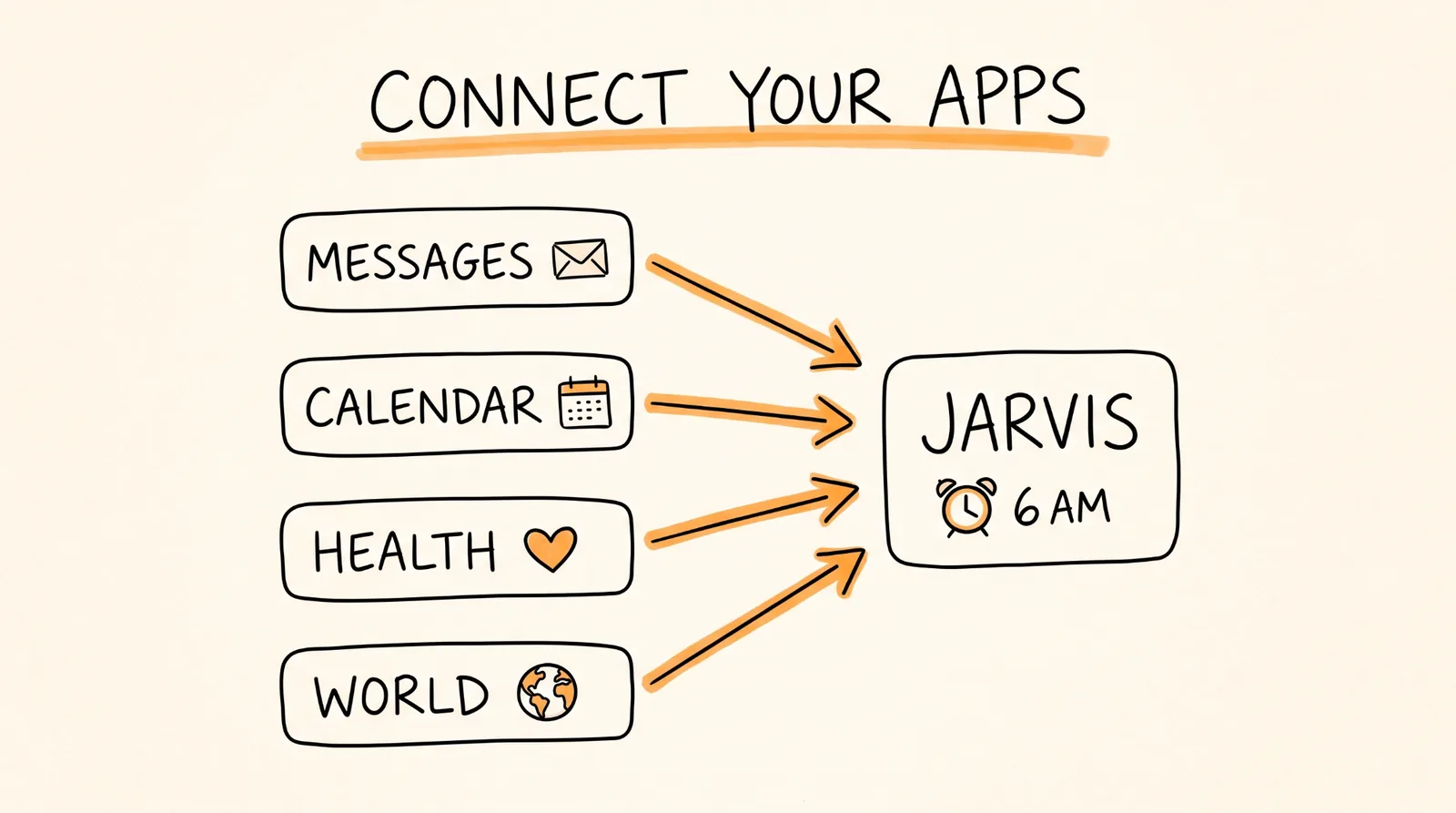
One Google sign-in covers Gmail, Calendar, Tasks, Contacts, and Drive:
jarvis connect gdrive
It asks for a Google client ID and secret. You make those in Google Cloud Console, and Claude Code can walk you through it step by step. Just ask it to.
Here are the apps I recommend connecting, grouped the way Jarvis reads them:
Messages: Gmail, Google Tasks, Slack, Notion, and GitHub notifications. iMessage works on a Mac with no setup.
Calendar: Google Calendar.
Health: Oura, Apple Health, or Strava, if you track sleep or workouts.
World: weather, Hacker News, and any news sites you read through RSS.
Then have Claude set the schedule so your briefing is ready when you wake up:
Set up my OpenJarvis morning digest to run every day at 6 AM in my timezone, with these sections: messages, calendar, health, and world. Connect Gmail, Google Tasks, Google Calendar, and Slack as sources, and add RSS feeds for [the news sites I read]. Then run jarvis connect --list and show me what's connected.
Step 3: Turn on the Spoken Briefing
This is where it starts to feel like Jarvis. The briefing is read out loud by Cartesia or OpenAI's voice models. The default voice is Alistair, a British male voice, and you can set what it calls you, like "sir" or "boss."
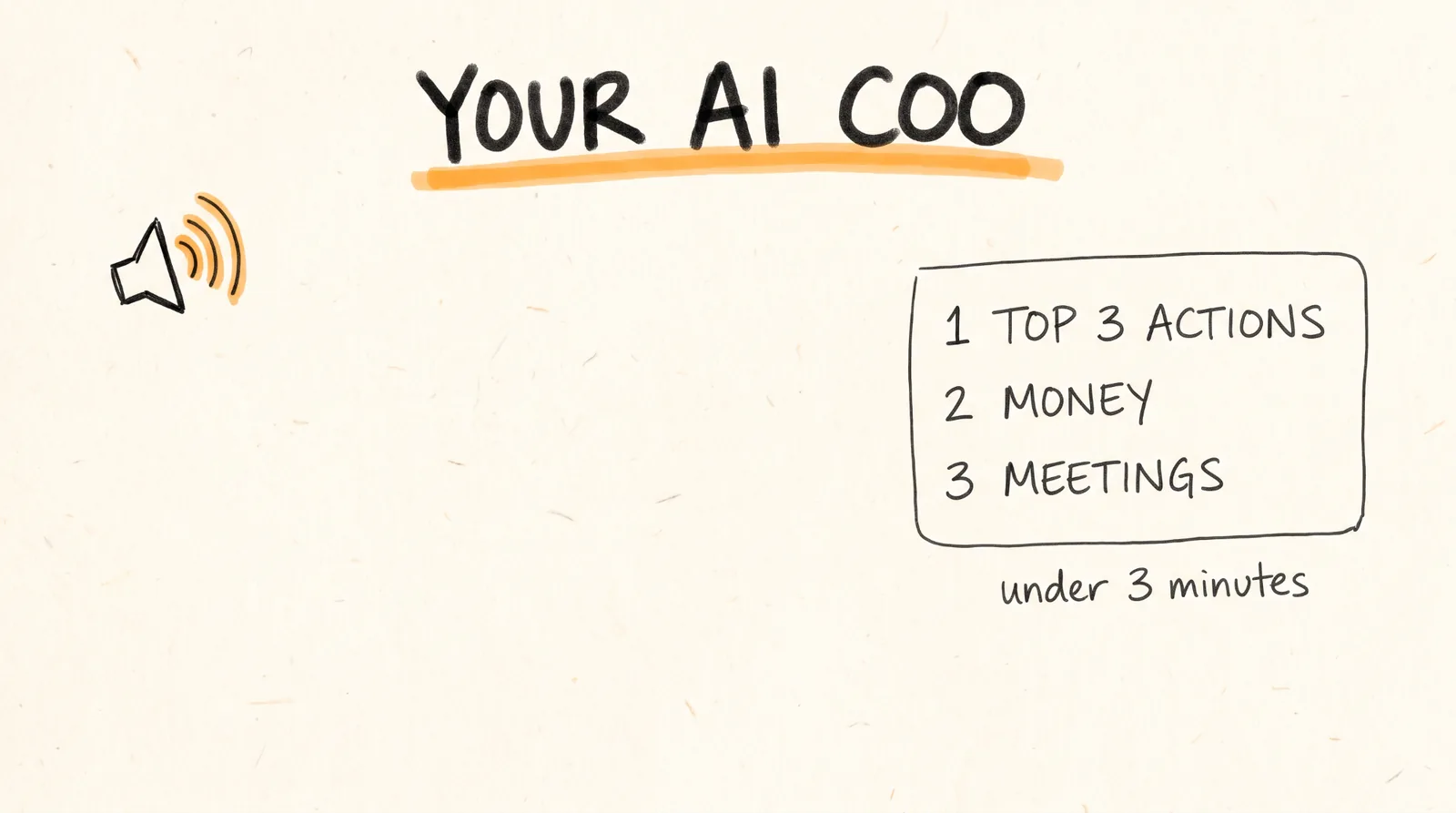
Here's the secret most people miss: Jarvis's personality comes from a persona file. So you can swap the default for one that runs your day like a COO and CFO. Paste this into Claude Code:
Create a new OpenJarvis persona called coo in configs/openjarvis/prompts/personas/coo.md and set it as my digest persona.
The coo persona talks to me like the COO and CFO of my business:
1. Open with the 3 actions I need to take today, most urgent first.
2. Then money: any invoices, payments, renewals, or deals mentioned in my email.
3. Then my meetings, with one line on what each one is for and what I need to prepare.
4. Then anything waiting on my reply for more than 2 days.
5. Skip newsletters and promos unless they mention a deadline.
Keep it under 3 minutes out loud.
Set the voice to Alistair with Cartesia, set my honorific to "boss," and tell me which API key I need to add.
Then test it:
jarvis digest --fresh
You can also just type "good morning" to it. And if you want the text version, run jarvis digest --text-only.
The Honest Note on Cost
Jarvis itself is free and open source, and the AI model runs on your computer, so there's no monthly subscription for it. The one thing that isn't free is the voice. The spoken briefing uses Cartesia or OpenAI, and both charge for usage, so you'll need an API key from one of them. If you want it 100% free, use the text-only briefing.
Rules to Remember
Have Claude Code explain what the repo installs before it runs anything.
Keep Jarvis on 127.0.0.1 so it only runs on your computer.
Start with Gmail and Calendar, then add more apps once the briefing works.
The persona file is what turns a summary into a COO.
Don't want to figure this out alone? I walk members through every step inside the community. Join the Skool → skool.com/raycfu